
4.8
on G2
 Screen Studio
 Tango
Tango
Screen Studio charges a flat subscription for a Mac-only video recorder, while Tango uses per-user pricing for a browser-based screenshot workflow tool. This page breaks down every tier, what you actually get, and where each model hits its limits—then recommends a better alternative for teams that need both recording and documentation.
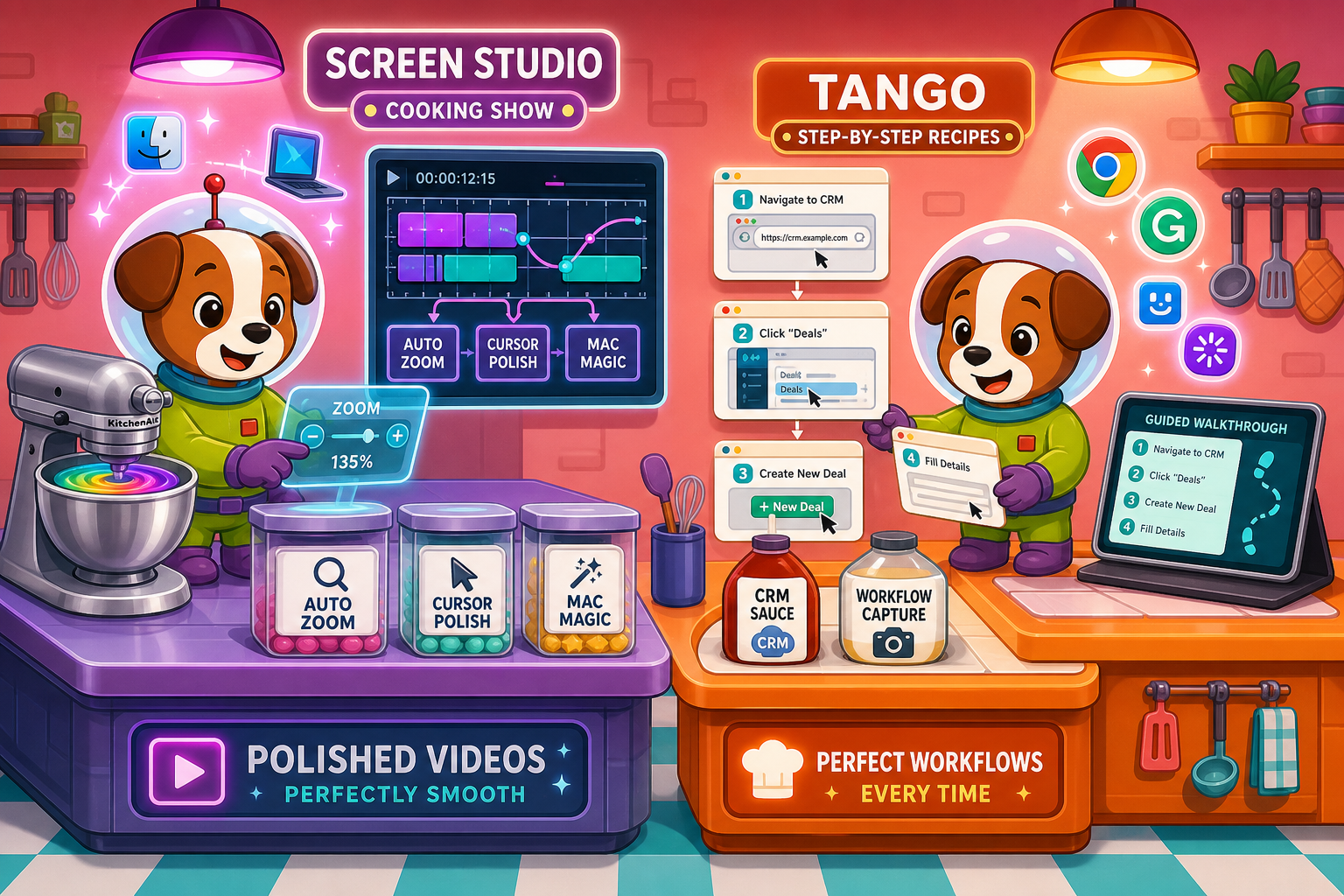
Screen Studio is the better choice for Mac users who need polished video recordings at a predictable flat cost, while Tango is the better entry point for browser-based workflow documentation on a tight budget.
Feature Matrix
A side-by-side breakdown of the features included at each pricing tier for Screen Studio and Tango, focused on what matters most for recording, documentation, and team scalability.
| Feature |
Screen Studio
|
Tango
|
|---|---|---|
| Free Plan Available | ||
| Starting Price | $9/month (billed yearly) | $0 (Free tier) |
| Per-User Pricing | ||
| Platform Support | macOS only | Browser (Chrome) + Desktop (Pro+) |
| Screen / Video Recording | ||
| Screenshot-Based Capture | ||
| Webcam Overlay | ||
| Microphone & System Audio | ||
| Automatic Zoom & Cursor Polish | ||
| Backgrounds & Visual Effects | ||
| Video Export (MP4 / GIF) | ||
| Step-by-Step Guide Output | ||
| Shareable Links | ||
| Branded Exports | Pro+ only | |
| Version History | 14 days (Pro) / 365 days (Enterprise) | |
| In-App Guided Walkthroughs | Enterprise only | |
| SSO / SCIM | Enterprise only | |
| Automatic PII Blurring | Enterprise only | |
| Video-to-Docs Conversion | ||
| Knowledge Base Publishing |
Pricing and features verified from official sites as of May 2026. Re-check before purchase as SaaS pricing changes frequently.
Strengths & Weaknesses
Deep Dive
An in-depth look at value for money, scalability costs, and hidden limitations across both pricing models.
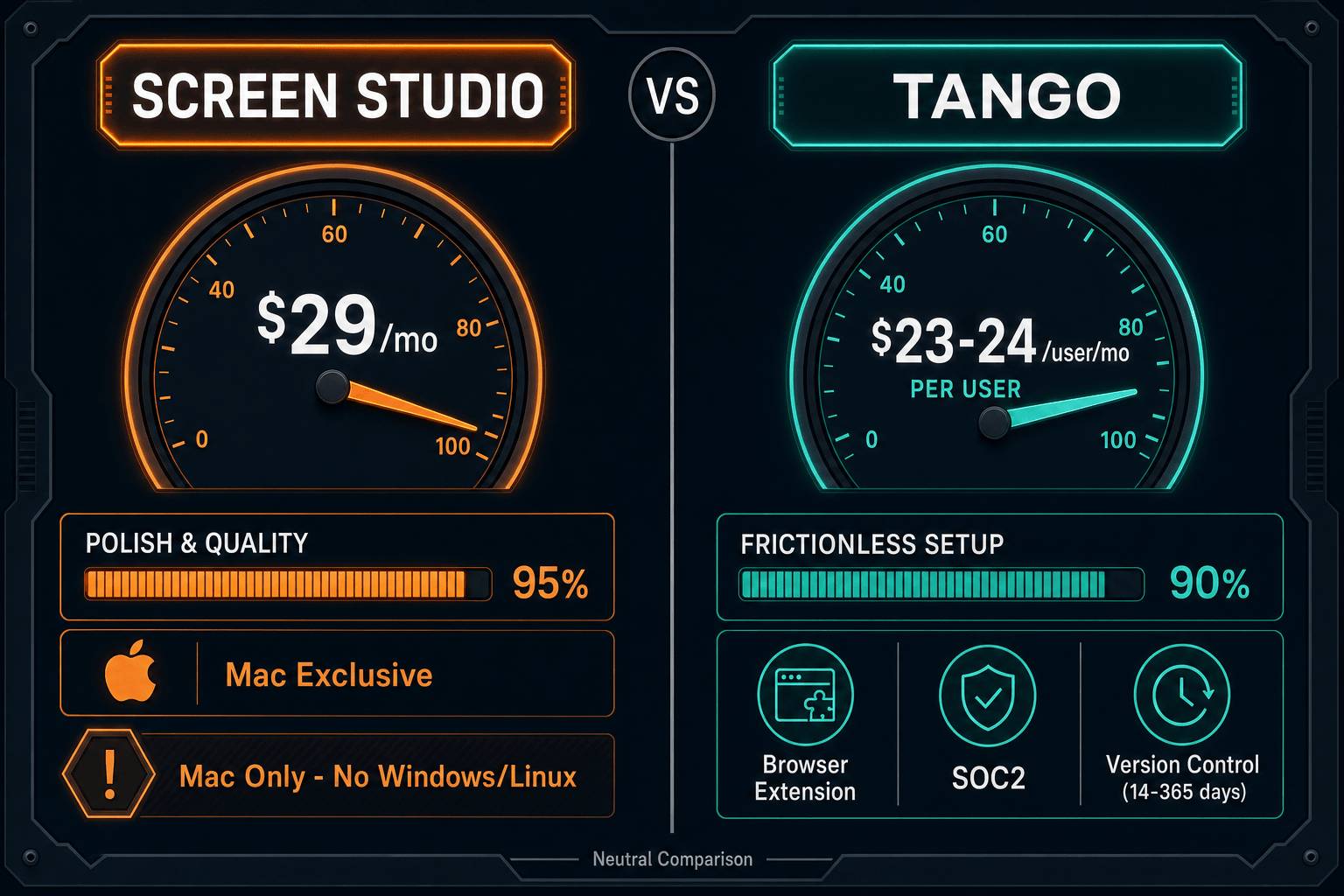
Screen Studio's yearly plan at $9/month delivers excellent value for a solo Mac user who needs polished video output — automatic zoom, webcam overlay, 4K export, and GIF all included. But the $29/month monthly rate feels steep for occasional use, and there is no free tier to evaluate first. Tango's free plan is genuinely useful for small teams documenting browser workflows, but the Pro tier at $23–$24 per user per month adds up fast. A five-person team pays roughly $120/month for screenshot-based guides — more than Screen Studio's entire yearly plan for video recording.
Screen Studio's flat subscription model is unusual and advantageous for growing teams — adding a second or third Mac user does not change the subscription cost, since the app is licensed per machine rather than per seat. Tango's per-user model scales linearly, making it one of the more expensive screenshot tools at team scale. A ten-person team on Tango Pro costs over $240/month, while an enterprise plan with SSO and unlimited version history carries a custom (typically higher) price. Neither tool offers a transparent team pricing model that scales gracefully for mid-market documentation teams.
Screen Studio's biggest hidden cost is platform lock-in — Windows and Linux users simply cannot use it at any price. Teams that record on mixed OS setups must buy a separate tool, doubling their tooling spend. Tango's hidden cost is feature gating — PII blurring, SSO, SAML/SCIM, and version history beyond 14 days all require Enterprise pricing, meaning Pro users pay $23–$24/user/month for a workflow that is missing several compliance and governance essentials. Both tools also stop at their output format — Screen Studio at video, Tango at screenshots — so teams needing written documentation must pay for yet another tool on top.
Pricing Breakdown
Every pricing tier for both tools compared side by side — including what is included, what is locked, and where each model runs out of value.
Screen Studio offers better per-seat economics at scale thanks to its flat subscription model, but it only works on macOS and outputs video only. Tango is more accessible with a free tier and works on any browser, but per-user Pro pricing adds up quickly and the feature set is limited to screenshot-based documentation. Neither tool includes video-to-docs conversion, knowledge base publishing, or multi-tenant delivery — which is where both models hit their ceiling.
Our Recommendation
Screen Studio is the better choice for Mac users who need polished video recordings at a predictable flat cost, while Tango is the better entry point for browser-based workflow documentation on a tight budget. However, both tools stop well short of what documentation teams actually need — Screen Studio at video output, and Tango at screenshots — leaving teams to pay for additional tools to go from recording to finished, publishable documentation.
Choose Screen Studio if you need. .
Choose Tango if you need. .
Choose Docsie Recorder if you need. .
Winner: Docsie Recorder
Docsie Recorder is free and open-source, runs on macOS, Windows, and Linux, and includes recorder-grade editing features like automatic zoom, crop, trim, speed regions, backgrounds, and annotation tools. Unlike Screen Studio (video-only, Mac-only) and Tango (screenshots-only, browser-only), Docsie Recorder connects directly to Docsie's Video-to-Docs pipeline — so the same recording that produces your MP4 or GIF can also generate structured documentation published into a versioned knowledge base, delivered through multi-tenant portals, and managed with enterprise SSO and audit controls. It is the only option in this comparison that covers CREATE, CONVERT, MANAGE, and DELIVER in one workflow.
Decision Helper
A direct framework for picking between Screen Studio, Tango, and Docsie based on your specific needs.
Polished Mac-only product demos with cinematic zoom and motion.
Workflow capture tool turning clicks into screenshot how-tos.

Convert real video into searchable docs, then deploy multi-tenant portals.
Common Questions
Q: Is Screen Studio worth $29/month compared to Tango's free plan?
A: It depends entirely on your output format. If you need polished video recordings on a Mac, Screen Studio's $29/month (or $9/month yearly) is reasonable for the quality delivered. Tango's free plan is better for teams that only need screenshot-based step guides for browser workflows. If you need both video recording and written documentation, neither tool's pricing represents full value because you will still need to pay for a separate documentation platform.
Q: How much does Tango Pro actually cost for a 10-person team?
A: At $23–$24 per user per month, a 10-person team on Tango Pro pays approximately $230–$240 per month, or roughly $2,760–$2,880 per year. That is significantly more than Screen Studio's yearly plan at around $108/year per user, and it only covers screenshot-based documentation — not video recording. For larger teams, Tango's per-user model quickly becomes one of the more expensive options in the workflow documentation category.
Q: Does Screen Studio offer a free trial before purchase?
A: Screen Studio makes a download available for macOS, but the exact trial terms and limits should be verified on the official site before purchasing, as they may change. There is no confirmed permanent free tier. Tango, by contrast, offers a genuine free plan supporting up to 10 users and 15 workflows with no time limit — making it easier to evaluate before committing to a paid tier.
Q: Can Screen Studio or Tango convert recordings into documentation?
A: No — neither tool includes video-to-docs conversion at any pricing tier. Screen Studio outputs polished video and GIF files with shareable links, and stops there. Tango outputs screenshot-based step guides but has no video recording capability and no conversion of existing video content into documentation. Teams that need recordings to become knowledge base articles, Markdown files, or PDF documentation need a separate tool on top of either subscription.
Q: Which tool is better for Windows or Linux users?
A: Tango is the better option for Windows and Linux users because it works through a Chrome browser extension, which is platform-agnostic. Screen Studio is macOS-only and has no confirmed Windows or Linux support at any price point. However, Tango's browser capture means it only documents web-based software workflows — it cannot record desktop applications, terminal sessions, or any non-browser activity, regardless of the operating system.
Q: Is there a better alternative to both Screen Studio and Tango?
A: Yes — Docsie Recorder addresses the core limitations of both tools in one free, open-source package. Unlike Screen Studio, it runs on macOS, Windows, and Linux with the same recorder-grade editing features (zoom, crop, trim, speed regions, backgrounds, annotations). Unlike Tango, it captures real video — not just screenshots — and connects directly to Docsie's Video-to-Docs pipeline, turning recordings into structured documentation published into a versioned knowledge base with multi-tenant portal delivery. The recorder itself is free with no subscription required; Video-to-Docs conversion uses Docsie AI credits for cloud processing. For teams that need recording and documentation in one workflow, Docsie Recorder is the natural next step beyond either competitor.
Docsie Recorder is a free, open-source screen recorder for macOS, Windows, and Linux that does what neither competitor can — record polished video and convert it directly into structured documentation published to a versioned knowledge base. No Mac lock-in, no per-user pricing, no stopping at video or screenshots.
Free to download and record. Video-to-Docs conversion uses Docsie AI credits — estimate before you convert.