
4.8
on G2
 Docsie Recorder
 Tango
Tango
Docsie Recorder is a free, open-source desktop recorder that captures video and converts it into structured documentation. Tango is a Chrome extension that captures browser workflows as screenshot-based step guides. If you searched for a screen recorder or Screen Studio alternative, this comparison shows why the capture method matters before docs even begin.

Docsie Recorder runs video-to-docs plus multi-tenant portals, Tango captures workflows into quick guides, while Docsie Recorder fits when you also need video → structured docs → multi-tenant portals end-to-end.
Feature Matrix
A feature-by-feature comparison of capture method, recording capabilities, editing tools, export formats, video-to-docs conversion, and downstream documentation management.
| Feature |
Docsie Recorder
Our Pick
|
Tango
|
|---|---|---|
| Free Desktop Recorder | ||
| Open-Source Recorder Base | ||
| Mac Support | Partial (Pro+ desktop app) | |
| Windows Support | Partial (Pro+ desktop app) | |
| Linux Support | ||
| Window and Full-Screen Capture | Browser only (free); desktop Pro+ | |
| Microphone Capture | ||
| System Audio Capture | Supported (OS-dependent) | |
| Webcam Overlay | ||
| Automatic or Manual Zoom | ||
| Cursor or Focus Polish | ||
| Backgrounds and Visual Effects | Wallpapers, gradients, custom | |
| Crop, Trim, Speed Regions | ||
| Annotations and Blur Regions | Text, arrows, images, blur | Basic step annotations |
| Local MP4 Export | ||
| Local GIF Export | ||
| Project Save Format | .docsiescreen project files | |
| Video-to-Docs Conversion | ||
| Markdown Export | ||
| DOCX Export | ||
| PDF Export | ||
| Screenshot-Based Step Guides | ||
| Knowledge Base Publishing | ||
| Versioned Documentation Management | Limited (14 days Pro, 365 days Enterprise) | |
| Multi-Tenant Portal Delivery | ||
| Enterprise Deployment Path | Enterprise plan | |
| SSO (SAML/SCIM) | Enterprise only | |
| API Access |
Data as of February 2026. Features based on publicly available information and vendor documentation. Tango desktop capture requires Pro plan ($23-24/user/month). Docsie Recorder desktop app is free and open source; Video-to-Docs conversion uses Docsie AI credits.
Strengths & Weaknesses
Deep Dive
An in-depth look at capture method fundamentals, AI and automation depth, enterprise readiness, and ecosystem integrations — with the recording workflow at the center.
Docsie Recorder is video-first. It captures a full screen session with audio, webcam overlay, and cursor telemetry, then lets you edit with zooms, backgrounds, annotations, and blur regions before exporting locally or sending to the Video-to-Docs pipeline. The result is structured Markdown, DOCX, PDF, or a published knowledge base article — not just a video file. Tango is screenshot-first. Its Chrome extension captures browser clicks as annotated screenshots assembled into a step guide. There is no video, no audio, and no way to process an existing recording. Teams that record first and document second — or have an existing video library — have no path forward with Tango.
Docsie Recorder's AI bridge sends a completed recording to Docsie's Video-to-Docs API, which uses multimodal analysis — transcription, computer vision, and frame understanding — to produce structured documentation. You can specify language, quality tier, doc style, and custom rewrite instructions before submitting. The output previews as Markdown before relying on this comparison into Docsie's knowledge base and version control workflows. Tango uses AI to auto-detect steps during browser capture and generate text descriptions for each screenshot. There is no audio transcription, no video input, and no conversion of existing content. Docsie's AI operates on a completed recording; Tango's AI annotates live browser clicks.
Docsie Recorder's output feeds directly into Docsie's enterprise platform, which provides full version control with inheritance, multi-tenant portal delivery to unlimited branded client portals, custom domain support, SSO (SAML, OAuth, OIDC, Azure AD, Okta), and API access. One recording can become a versioned article served to multiple customer segments simultaneously. Tango offers SSO and SCIM only on Enterprise, version history is severely limited (14 days on Pro), there are no multi-tenant portals, and there is no API access. For organizations that need to publish documentation to external clients or manage content across multiple product versions, Tango's architecture simply does not extend that far.
Docsie Recorder is MIT-licensed at the recorder/editor core, meaning teams can audit the capture code, fork it, or extend it. The Docsie bridge connects to a full platform with API access, webhooks, embeddable widgets, helpdesk integrations, and portal delivery. The recording is the first step in a CREATE → CONVERT → MANAGE → DELIVER chain. Tango operates as a closed Chrome extension with no API access. Integrations are limited to embedding guides in Notion, Confluence, Zendesk, and similar tools. There is no programmatic control, no knowledge base platform, and no downstream publishing pipeline. Teams that need their documentation infrastructure to be auditable, extensible, or integrated into custom workflows will find Docsie Recorder's open-source foundation and Docsie platform connectivity to be a decisive advantage.
Our Recommendation
Docsie Recorder and Tango capture content in fundamentally different ways. Docsie Recorder is a free, open-source desktop app that records video with audio and converts it into structured documentation through Docsie's Video-to-Docs pipeline. Tango is a browser extension that captures screenshot-based step guides from live browser workflows. If you searched for a screen recorder, Screen Studio alternative, or a tool that produces real video output, Tango does not fulfill that need. If you want click-capture for browser-only workflows with no audio and no existing video library, Tango is fast to start. The tools are not competing on the same surface.
Choose Docsie Recorder if you need...
Choose Tango if you need...
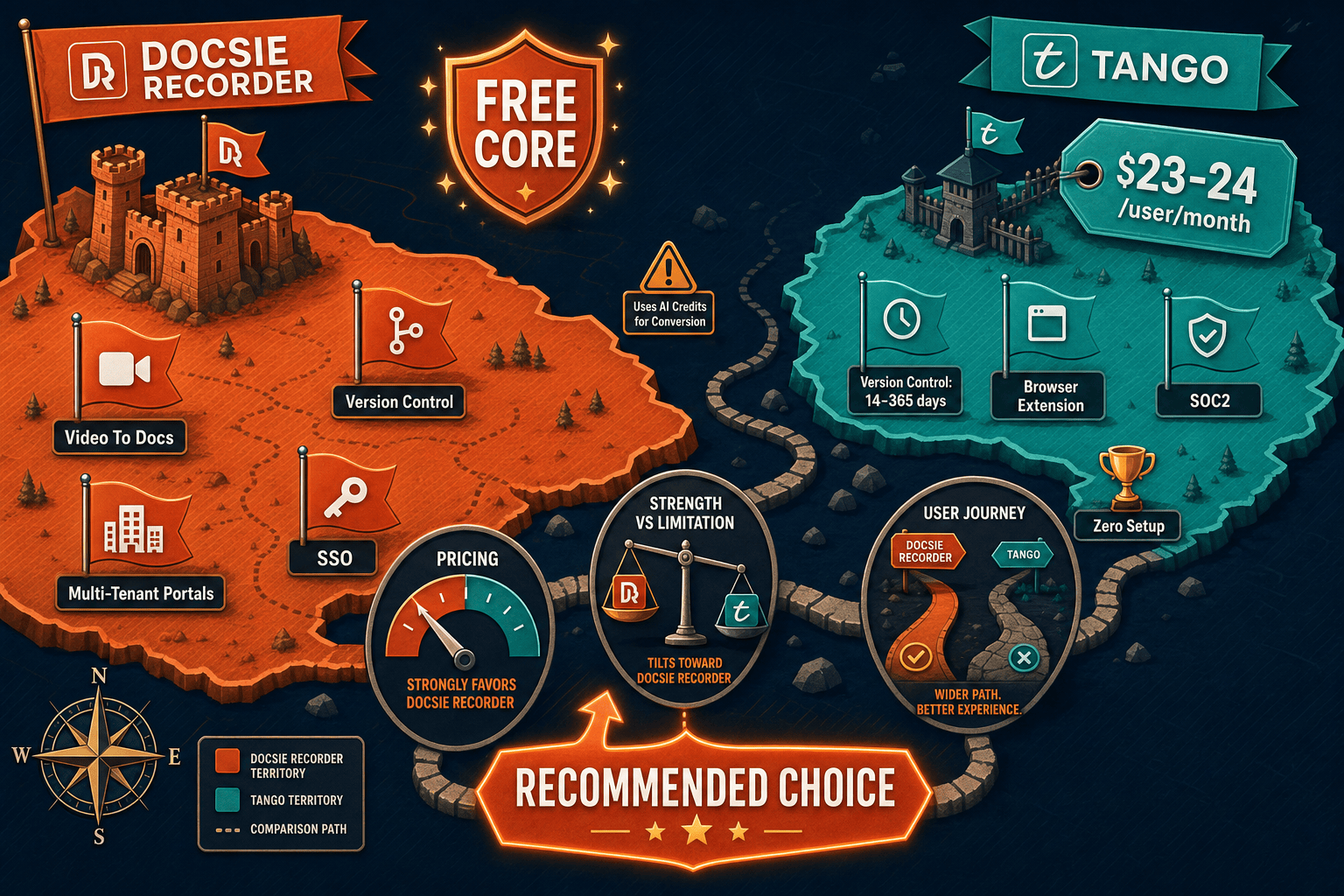
Winner: Docsie Recorder
For anyone who searched for a screen recorder, Screen Studio alternative, or a tool that turns video into documentation, Docsie Recorder wins decisively. It is the only free, open-source option in this comparison that captures real video with audio, edits it with recorder-grade tools, exports locally as MP4 or GIF, and connects directly to a Video-to-Docs pipeline that publishes structured content into a versioned, multi-tenant knowledge base. Tango cannot record video, cannot process existing recordings, and cannot deliver documentation to external portals — making it a fundamentally different tool serving a narrower, browser-only use case.
Decision Helper
A direct framework for picking between Docsie Recorder, Tango based on your specific needs.
Free, open-source desktop screen recorder that feeds a Video-to-Docs pipeline.
Browser extension that auto-captures workflow screenshots into guides.
Common Questions
Q: Does Tango record video like Docsie Recorder does?
A: No. Tango captures screenshots of browser workflows via its Chrome extension — there is no video recording, no audio, and no webcam. Docsie Recorder is a full desktop screen recorder that captures video with microphone audio, system audio, and webcam overlay, then lets you edit the recording before exporting as MP4 or GIF. If you searched for a screen recorder or Screen Studio alternative, Tango does not fit that need.
Q: Can Tango convert an existing training video into documentation?
A: No. Tango only works with live browser captures made through its Chrome extension. It has no ability to accept uploaded videos, process existing recordings, or convert any pre-recorded content. Docsie Recorder captures new video locally and sends it to Docsie's Video-to-Docs pipeline, which converts the recording into structured Markdown, DOCX, PDF, or a published knowledge base article using multimodal AI.
Q: Which tool works on Linux?
A: Only Docsie Recorder supports Linux. Docsie provides builds for macOS, Windows, and Linux through its open-source GitHub repository. Tango's desktop capture feature is limited to macOS and Windows and requires a paid Pro plan ($23-24/user/month), while its free tier is browser-only via Chrome extension.
Q: Is Docsie Recorder actually free, or is there a catch?
A: The recorder and editor are genuinely free and open source under the MIT license — no account required to record and export MP4 or GIF locally. The only paid step is the optional Video-to-Docs conversion, which uses Docsie AI credits to send your recording through the pipeline and generate structured documentation. You can record, edit, and export video without ever spending anything or creating an account.
Q: If I already use Tango for browser workflows, should I switch to Docsie Recorder?
A: If your entire documentation need is browser-based SaaS workflows with screenshot step guides, Tango continues to work for that narrow use case. But if you need to document anything outside a browser — desktop apps, physical processes, real-world walkthroughs, or existing training videos — Tango cannot help and Docsie Recorder fills that gap. Many teams use Docsie Recorder for video-based docs while the Docsie platform handles knowledge base publishing for both outputs.
Q: How does the Video-to-Docs conversion work after recording in Docsie Recorder?
A: After recording and editing your screen session in Docsie Recorder, you select a Docsie workspace, choose language, quality tier, and doc style, estimate the AI credit cost, and submit the job. Docsie's Video-to-Docs API analyzes the recording using transcription and computer vision, then returns a structured Markdown preview. You can review the output before relying on this comparison it into Docsie's knowledge base, version control, and portal delivery workflows — turning one recording into a fully managed documentation article.
Start creating professional documentation that your users will love