4.8
on G2
 Docsie Recorder
 Glitter AI
Both Docsie Recorder and Glitter AI turn screen recordings into documentation, but they diverge sharply on recorder depth, editing power, open-source access, and what happens after the video is captured. Docsie Recorder is a free, open-source desktop recorder with a full editing suite that routes recordings into structured docs and a knowledge base. Glitter AI is a browser-extension capture tool focused on converting recordings into annotated screenshot guides—with no desktop recorder, no editing pipeline, and no publishing platform.
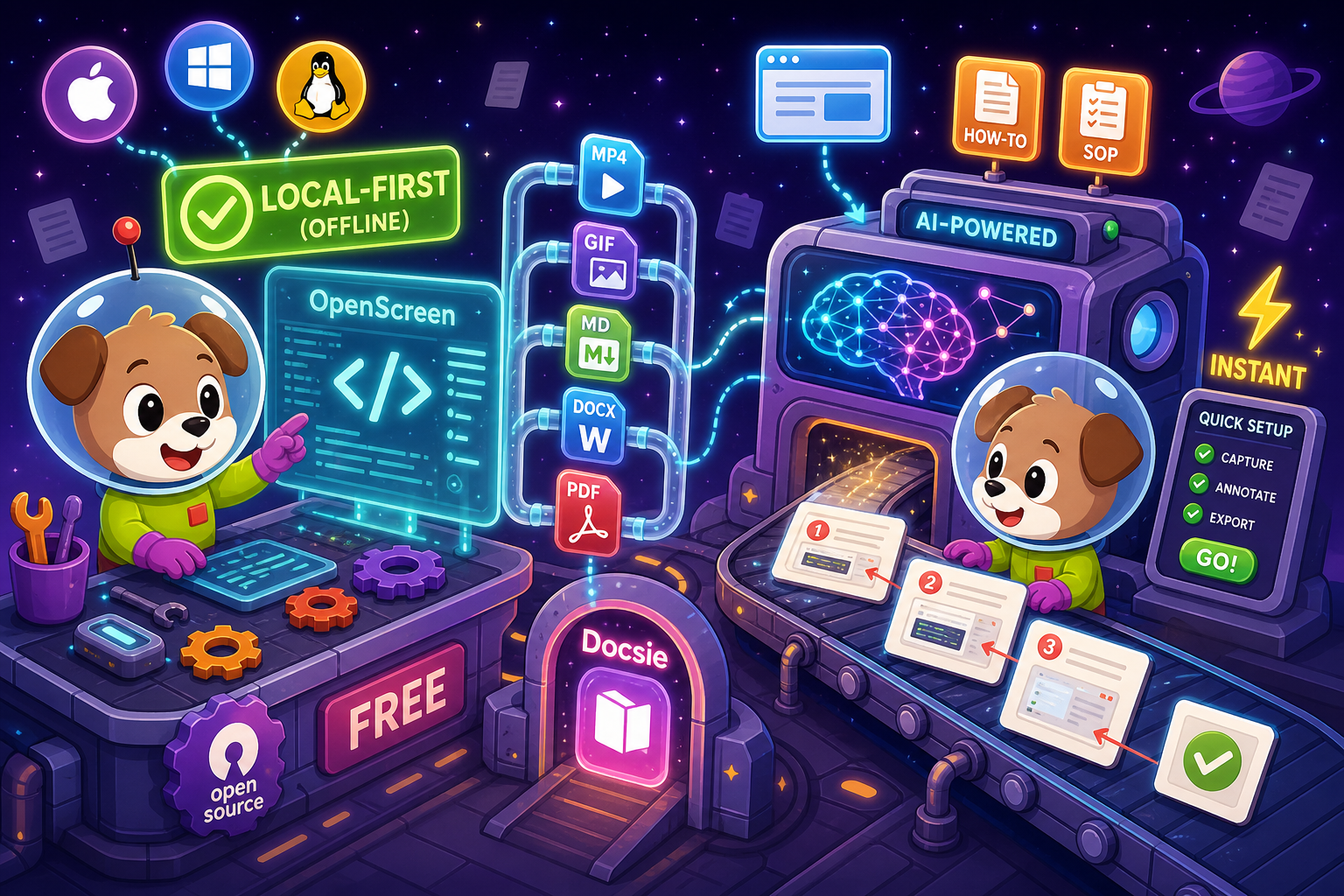
Docsie Recorder leads with free; Glitter AI leads with quick setup with browser extension for instant screen capture. Neither converts real video into docs and deploys multi-tenant portals; Docsie does both.
Feature Matrix
A comprehensive feature-by-feature comparison covering recorder capabilities, editing tools, export formats, AI video-to-docs conversion, and downstream knowledge base publishing.
| Feature |
Docsie Recorder
Our Pick
|
Glitter AI
|
|---|---|---|
| Free desktop recorder | ||
| Open-source recorder base | ||
| Mac support | ||
| Windows support | ||
| Linux support | ||
| Window and full-screen capture | Browser extension only | |
| Microphone capture | ||
| System audio capture | Platform-dependent | |
| Webcam overlay | ||
| Automatic or manual zoom | ||
| Cursor or focus polish | ||
| Backgrounds and visual effects | Wallpapers, gradients, custom | |
| Crop, trim, speed regions | ||
| Annotations and blur regions | Basic annotations only | |
| Local MP4 export | ||
| Local GIF export | ||
| Project save format | .docsiescreen project files | |
| Video-to-docs conversion | ||
| Markdown export | ||
| DOCX export | ||
| PDF export | Pro+ only | |
| Knowledge base publishing | ||
| Versioned documentation management | ||
| Multi-tenant portal delivery | ||
| API access | ||
| SSO | Enterprise only |
Data as of February 2026. Features are based on publicly available information and vendor documentation. Docsie Recorder recorder/editor core is MIT-licensed open source; Video-to-Docs and downstream Docsie platform features use Docsie AI credits and follow separate licensing.
Strengths & Weaknesses
Deep Dive
An in-depth analysis of recorder capabilities, AI video-to-docs workflows, enterprise readiness, and integration ecosystems between these two tools.
Docsie Recorder is a full desktop application that records specific windows or the entire screen on macOS, Windows, and Linux. Its editing suite includes automatic and manual zoom, cursor polish, webcam overlay, custom backgrounds, motion blur, speed regions, crop, trim, and annotation with blur. Recordings save as editable .docsiescreen project files and export locally to MP4 or GIF without any account requirement. Glitter AI captures only through a browser extension and produces annotated screenshot guides—there is no desktop recorder, no editing pipeline, no webcam support, and no local video export. For teams evaluating Screen Studio alternatives, Docsie Recorder competes directly on recording and editing depth; Glitter AI does not.
Both tools convert recordings into documentation, but the approach and output differ substantially. Docsie Recorder sends a completed recording through the Docsie Video-to-Docs API, which uses multimodal AI to generate structured Markdown with configurable quality tier, language, doc style, and rewrite instructions. The result previews in the app and publishes directly into a Docsie knowledge base. Glitter AI uses AI to detect UI steps during a browser capture session and assembles those steps into an annotated screenshot guide automatically. Docsie produces structured text docs with Markdown, DOCX, and PDF export options; Glitter AI produces screenshot-based step guides with no Markdown or DOCX output and PDF only on paid plans.
Docsie Recorder's open-source core requires no account for recording and exporting video, making it auditable and deployable in air-gapped or sensitive environments. The downstream Docsie platform adds enterprise-grade capabilities including SSO (SAML, OAuth, OIDC), versioned documentation management, multi-tenant portal delivery with custom domains, role-based access control, API access, and compliance workflows. Glitter AI offers SSO and dedicated support only on its Enterprise tier, has no SOC 2 compliance, no audit logs, no data residency options, no version control, and no multi-tenant portal architecture. For regulated or multi-client teams, the downstream Docsie platform provides enterprise depth that Glitter AI cannot match at any pricing tier.
Docsie Recorder connects to the broader Docsie platform after a recording is complete, enabling CONVERT (structured Markdown/DOCX/PDF from video), MANAGE (version-controlled knowledge base), DELIVER (multi-tenant portals with custom domains), LEARN (reuse recordings and docs as course material), and AUTOMATE (route documentation into compliance and monitoring workflows). The Docsie platform exposes an API and webhooks for custom integrations. Glitter AI integrates with Notion, Confluence, and Google Docs for exporting or embedding screenshot guides, and uses a browser extension as its primary capture interface. There is no API access, no knowledge base platform, and no publishing workflow beyond those three export destinations. Teams wanting a full CREATE-to-DELIVER pipeline get it from Docsie; Glitter AI stops at guide export.
Our Recommendation
Docsie Recorder and Glitter AI both aim to produce documentation from screen recordings, but they operate at different levels of capability. Docsie Recorder is a free, open-source desktop recorder with a professional editing suite, cross-platform support, and a direct pipeline into structured documentation and a full knowledge base platform. Glitter AI is a browser-extension capture tool that auto-generates annotated screenshot guides—useful for quick how-tos but without a recorder, editor, local video export, or any downstream publishing platform. The choice is clear for most professional documentation teams.
Choose Docsie Recorder if you need...
Choose Glitter AI if you need...
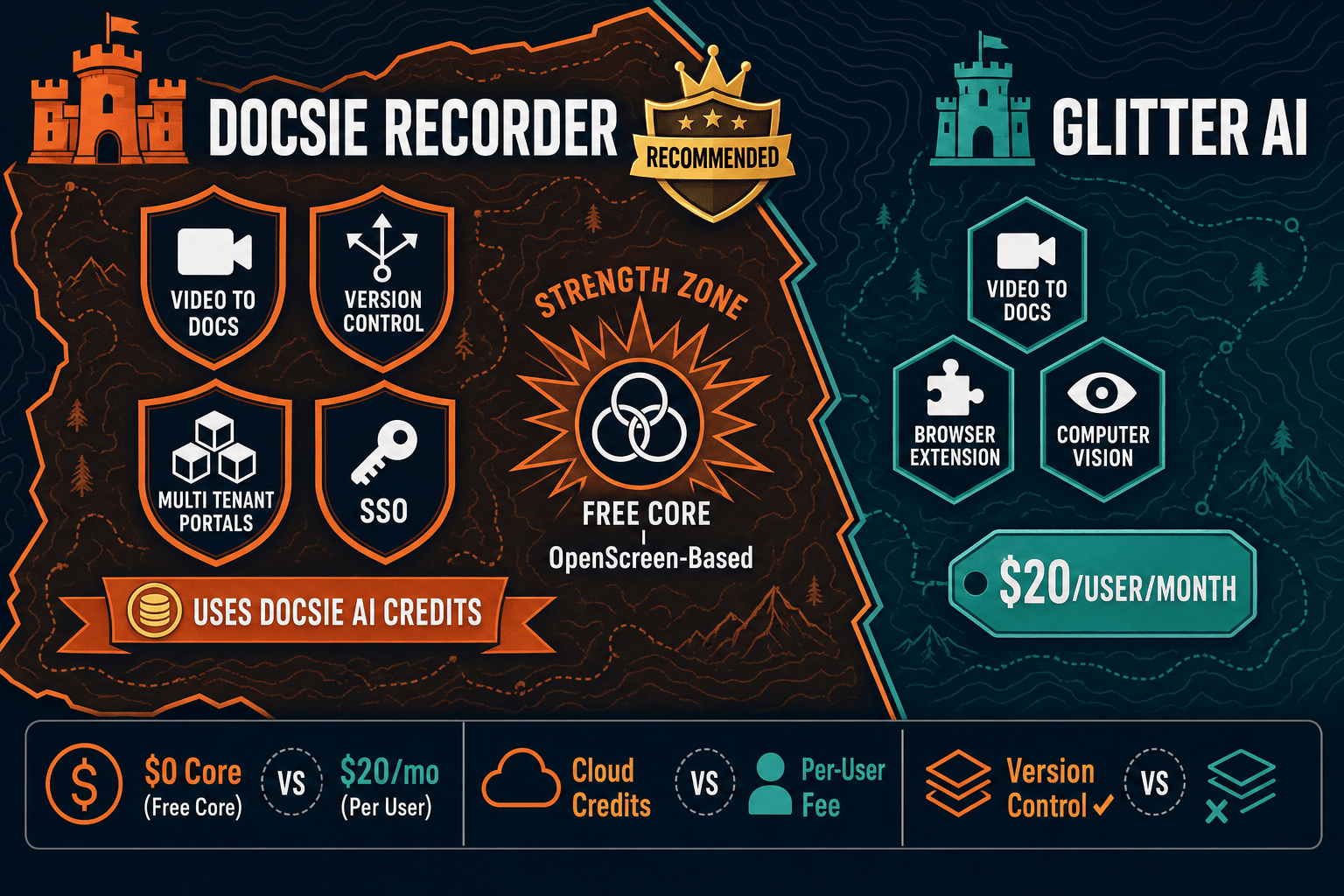
Winner: Docsie Recorder
Docsie Recorder wins for teams evaluating screen recorders, Screen Studio alternatives, or AI video-to-docs tools. It delivers a free, open-source, cross-platform desktop recorder with a professional editing suite, local MP4 and GIF export, and a direct bridge into the Docsie Video-to-Docs pipeline. Glitter AI stops at annotated screenshot guides exported to Notion or Confluence. Docsie Recorder turns one recording into structured documentation that flows through versioning, knowledge base publishing, and multi-tenant portal delivery—making it the only tool in this comparison that covers the full CREATE-to-DELIVER workflow.
Decision Helper
A direct framework for picking between Docsie Recorder, Glitter AI, and Docsie based on your specific needs.
Docsie's free browser-based recorder that pipes captures straight into Docsie SOPs.
AI-generated process documentation from screen recordings.

Convert real video into searchable docs, then deploy via multi-tenant portals.
Common Questions
Q: Does Glitter AI have a desktop recorder like Docsie Recorder?
A: No. Glitter AI captures screen activity through a browser extension only and does not offer a desktop application. Docsie Recorder is a full desktop app available for macOS, Windows, and Linux, built on the open-source OpenScreen core. If you need to record specific application windows, use webcam overlays, apply editing effects, or export a local MP4 or GIF, Docsie Recorder is the only option between these two tools.
Q: Can Docsie Recorder produce the same annotated screenshot step guides that Glitter AI creates?
A: Docsie Recorder takes a different approach—it is video-first rather than screenshot-first. When you send a Docsie recording through the Video-to-Docs pipeline, the AI generates structured documentation from the video, including steps, screenshots, and Markdown content. Glitter AI auto-detects UI steps from browser captures and assembles them into screenshot guides during recording. Both produce step-based documentation, but Docsie's output is richer text with configurable style and language, while Glitter AI's is a visual screenshot sequence.
Q: Is Docsie Recorder actually free and open source?
A: Yes. The Docsie Recorder and editor core is released under the MIT license, built on OpenScreen, and available on GitHub with no account required to record and export MP4 or GIF. The Video-to-Docs conversion uses Docsie AI credits, and downstream Docsie platform features (knowledge base, portals, versioning) follow Docsie's standard platform pricing. The recorder itself has no cost and no subscription requirement.
Q: Which tool is better for teams that need to publish documentation to customers, not just share a guide link?
A: Docsie Recorder connects to the Docsie platform, which supports multi-tenant portals with custom domains, versioned documentation, and role-based access—designed for customer-facing and client-specific knowledge bases. Glitter AI outputs guides that can be exported to Notion, Confluence, or Google Docs but has no publishing platform, no custom domain support, and no portal architecture for delivering branded documentation to external audiences.
Q: How do the two tools compare for teams on Linux?
A: Docsie Recorder provides a native Linux build, making it one of the few screen recorders in this category with genuine cross-platform coverage. Glitter AI's browser extension works in Chrome on Linux in theory, but the tool is designed and tested primarily for Mac and Windows workflows. Teams using Linux as a primary development environment will find Docsie Recorder's explicit Linux support significantly more reliable.
Q: Can I use Glitter AI output as input to the Docsie knowledge base?
A: You can manually copy Glitter AI guide content into Docsie if you export it to a format Docsie accepts, but there is no direct integration between the two tools. Docsie Recorder is the recommended path because it was built to connect natively to the Docsie Video-to-Docs API, automatically routing recordings into structured documentation that publishes directly into Docsie's knowledge base without any manual copy-paste step.
Download Docsie Recorder for free, edit your recording with zoom, backgrounds, and annotations, then convert it into structured documentation and publish it to a versioned knowledge base—all from one open-source workflow.
No account required to record and export MP4 or GIF. Video-to-Docs conversion uses Docsie AI credits with a free starting allowance.