
4.8
on G2
Try It Free
Upload a video or paste a URL — get structured text output with screenshots automatically.
Drag & drop your video here to convert to text
MP4, MOV, AVI, WebM — up to 2 GB
Your files are encrypted and deleted after processing. SOC 2 compliant.
Most video to text converters give you a wall of transcript. Docsie's AI converts video to text and organizes it into structured documents with screenshots, numbered steps, and proper formatting — ready to publish.

Enterprise teams use Docsie to convert training videos, product demos, and screen recordings into structured text documentation




_Leader_Small-Business_Leader.svg)


_BestSupport_Small-Business_QualityOfSupport.svg)

Video to Text Capabilities
Traditional video to text tools stop at transcription. Docsie's AI analyzes visuals, captures screenshots, and produces structured documentation — not just a transcript.
| Video to Text Capability |
Docsie
Full Suite
|
ScreenApp
|
Scribe
|
Guidde
|
Tango
|
|---|---|---|---|---|---|
| Audio transcription & speaker detection | |||||
| Computer vision analysis | |||||
| Automatic screenshot capture | |||||
| On-screen text reading (OCR) | |||||
| Structured document output | |||||
| Works with any video file or URL | |||||
| Code & terminal detection | |||||
| Multi-language translation | |||||
| Publish directly to knowledge base | |||||
| Enterprise SSO & permissions |
Comparison based on publicly available feature information as of February 2026. Scribe, Guidde, and Tango focus on screen recording with step capture; ScreenApp focuses on transcription.
Video to Text Output Quality
Here's what you get from a typical video to text converter versus Docsie's AI output — same 5-minute Salesforce training video.
How It Works
Docsie's AI goes beyond basic video to text conversion — it watches your screen, reads text, captures screenshots, and writes structured documentation.
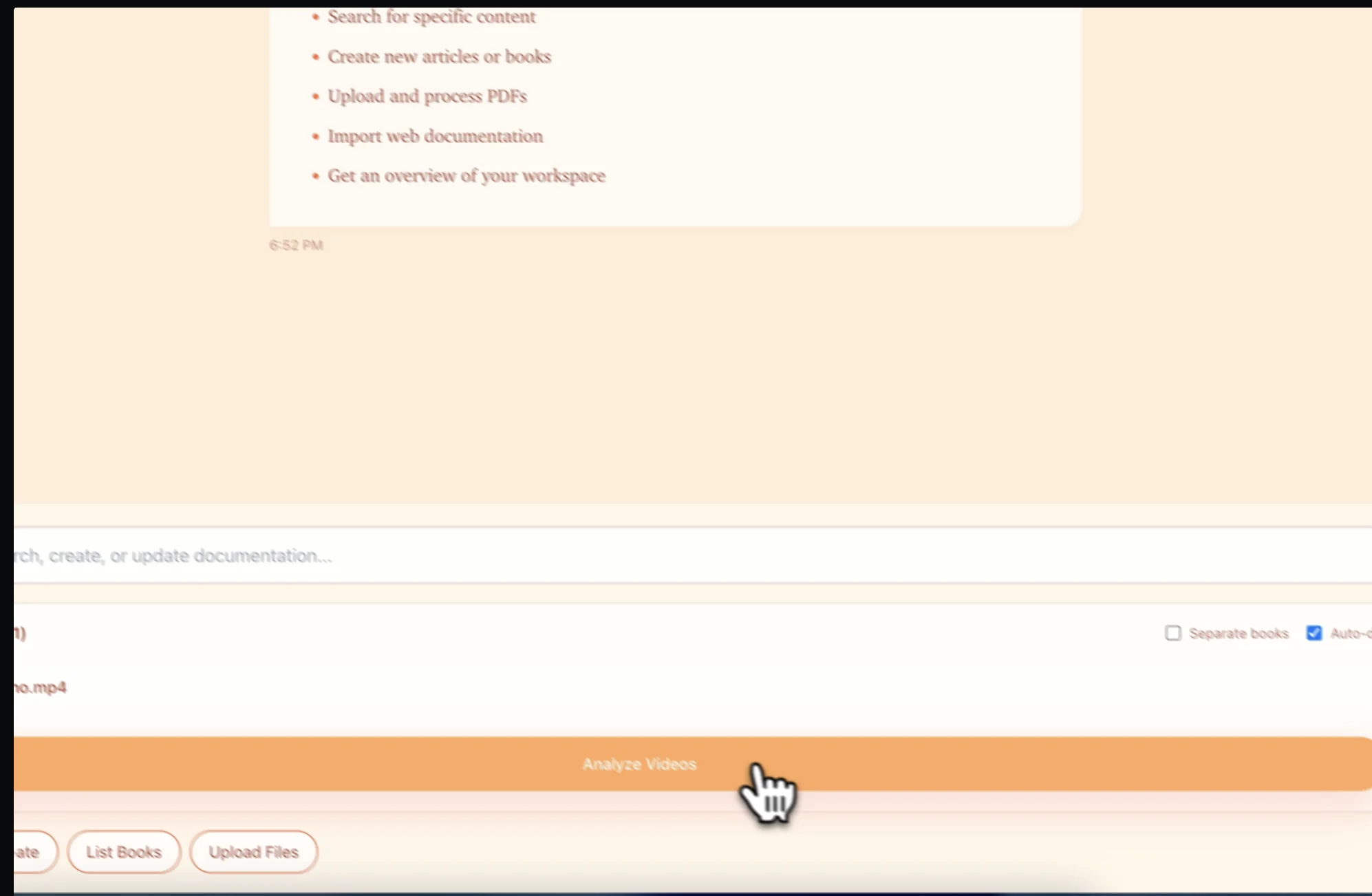
Drop any video file into Docsie or paste a YouTube, Vimeo, or Loom URL. The video to text converter accepts MP4, MOV, AVI, and WebM formats up to 2 GB.
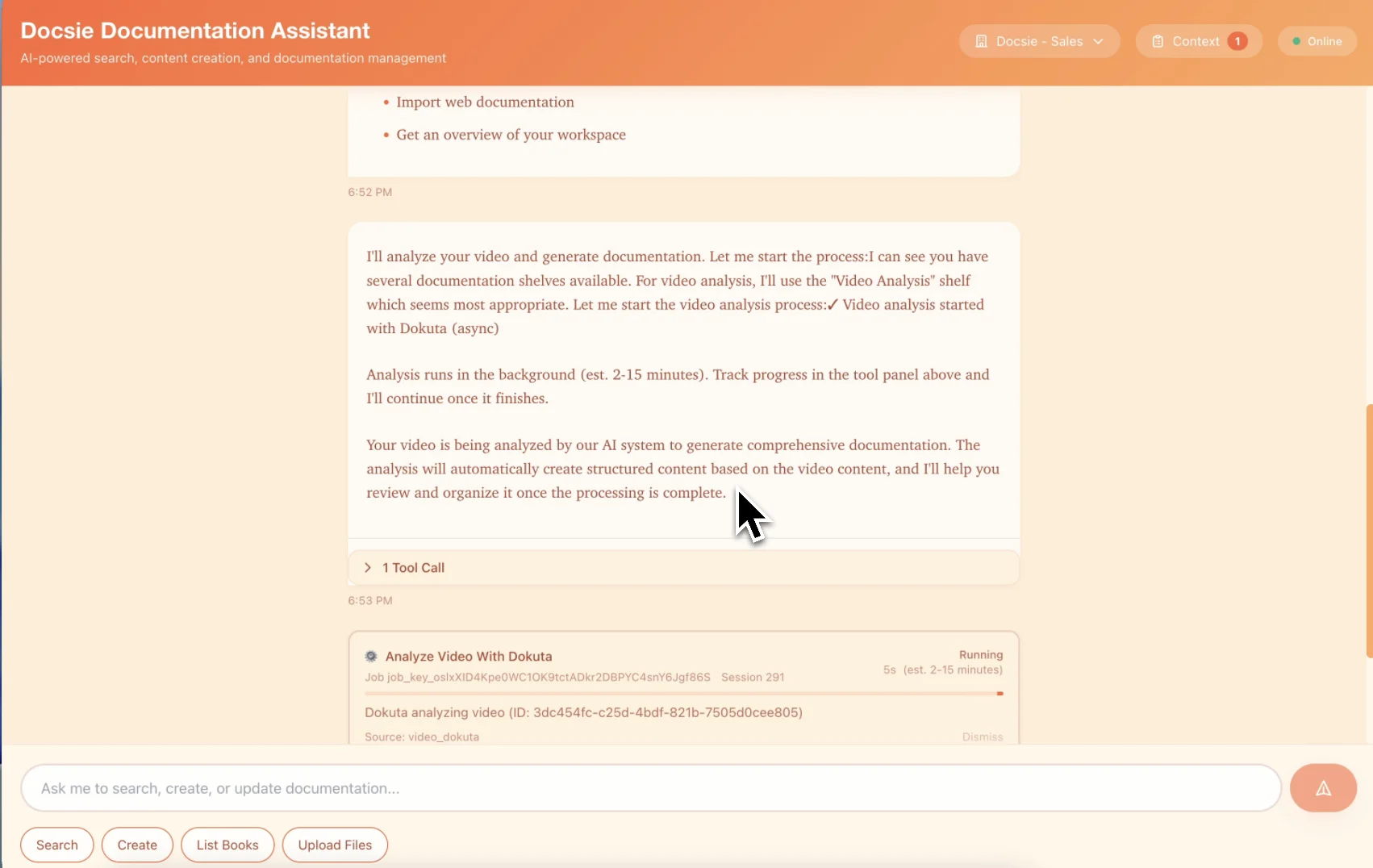
Docsie's multimodal AI transcribes audio, reads on-screen text with OCR, identifies UI elements, and captures screenshots at key moments — producing organized text, not just a transcript.
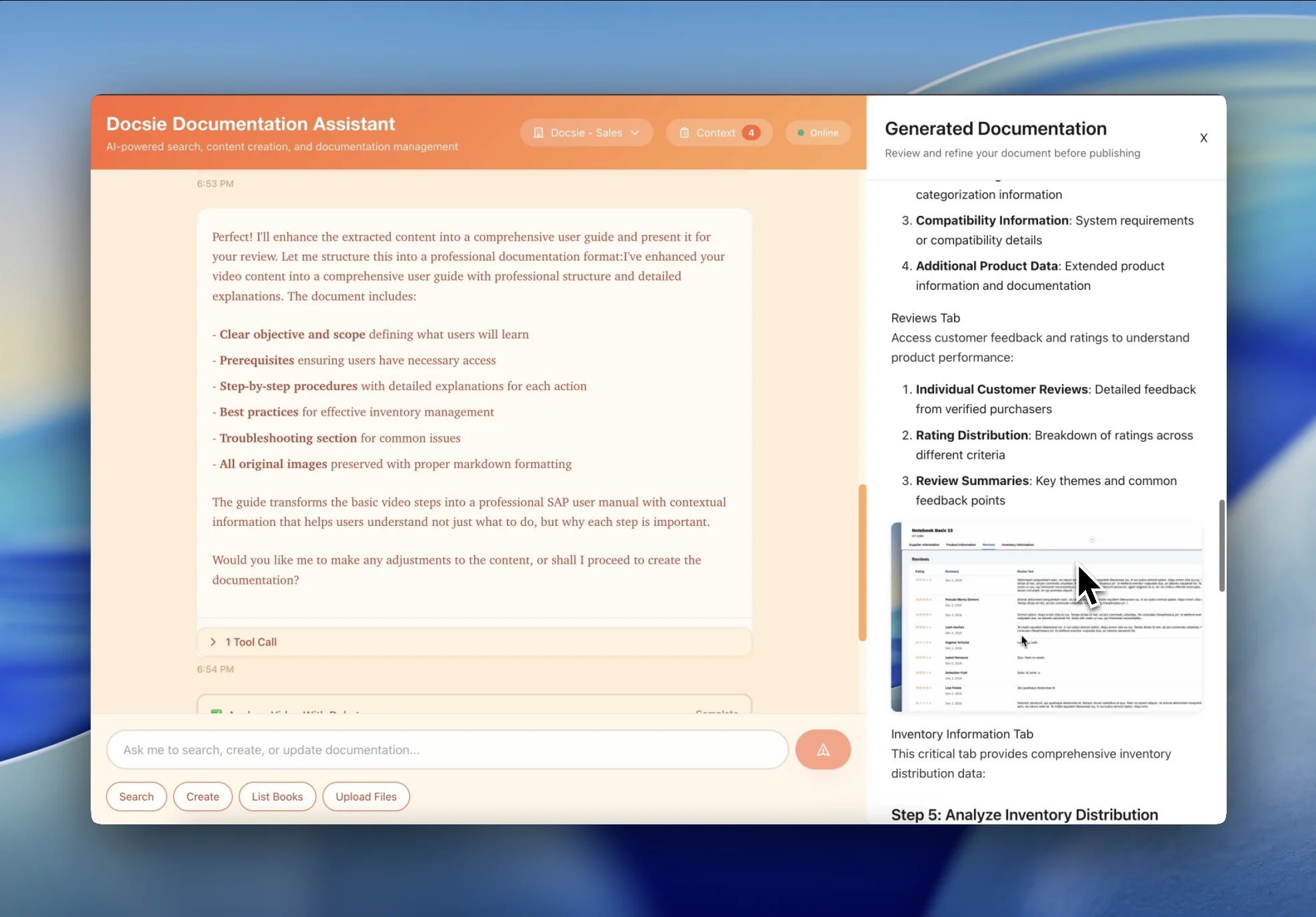
Get a fully structured document with numbered steps, embedded screenshots, headings, and clean formatting. Edit if needed and publish directly to your knowledge base.
Beyond Basic Transcription
Traditional video to text tools give you a raw transcript. Docsie's AI analyzes both audio and visuals to produce structured, publish-ready documentation with screenshots.
Docsie's video to text AI doesn't just listen — it watches. Computer vision reads on-screen text, tracks mouse movements, and detects visual transitions between steps.
Key visual moments are captured automatically — UI changes, diagram reveals, important screens — and embedded as illustrations alongside the text output.
The AI maps what's being said to what's being shown. When the speaker says 'click Save,' Docsie identifies that button on screen and captures it.
Code shown in IDEs, terminal commands, and configuration files are detected and formatted as proper code blocks — not just raw text in a transcript.
After converting video to text, translate the complete structured output — including step descriptions and screenshot captions — into 50+ languages.
Your video to text output publishes directly to a searchable Docsie knowledge base. Video content becomes findable documentation instantly.
Teams across industries use Docsie's video to text converter to turn video content into structured, searchable documentation

Turn hours of training footage into structured text documentation that employees can search and reference. Docsie's video to text converter captures screenshots alongside the text for visual step-by-step guides.

Loom recordings, Zoom sessions, and Teams meetings converted to structured text with step-by-step instructions. The AI reads what's on screen, not just what's being said.

Paste any YouTube URL and get structured text output with screenshots. Perfect for converting YouTube tutorials, product reviews, and educational content into reference documentation.
Common Questions
Everything you need to know about converting video to text with Docsie
Q: How is Docsie different from other video to text converters?
A: Most video to text converters only transcribe audio — giving you a wall of unstructured transcript text. Docsie's AI also uses computer vision to watch what's happening on screen. It reads on-screen text, identifies UI elements, captures screenshots at key moments, and organizes everything into structured documentation with numbered steps and proper formatting.
Q: What video formats does the video to text converter support?
A: Docsie accepts all major video formats including MP4, MOV, AVI, and WebM files up to 2 GB. You can also paste YouTube, Vimeo, Loom, and Google Drive video URLs to convert to text instantly.
Q: How fast does the video to text conversion take?
A: Docsie processes videos at about 15-20% of the video length. A 10-minute video converts to structured text in about 2 minutes. The computer vision analysis adds minimal time compared to the quality improvement it delivers over basic transcription.
Q: Can I edit the text output after conversion?
A: Yes. Docsie's video to text converter produces a high-quality first draft that's typically 85-90% ready to publish. You can edit text, reorder steps, add or remove screenshots, and adjust formatting using the built-in editor.
Q: Does the video to text converter work with silent videos?
A: Yes. Docsie's AI works with silent screen recordings. The computer vision engine analyzes screen changes, reads on-screen text, detects mouse clicks, and generates step-by-step instructions purely from the visual content — no audio required.
Q: Can the video to text AI detect code shown on screen?
A: Yes. When your video contains code — in an IDE, terminal, or configuration file — Docsie recognizes it and formats it as proper code blocks in the text output with syntax highlighting and language detection.
Q: How accurate is the video to text conversion?
A: Docsie achieves 95%+ accuracy for both audio transcription and on-screen text reading (OCR). The computer vision is specifically trained on software UIs, IDE environments, and technical content.
Q: Can enterprise teams use the video to text converter at scale?
A: Yes. Docsie supports enterprise-scale video to text conversion with SSO authentication, role-based permissions, and team workspaces. Convert entire training video libraries into searchable text documentation.
Q: Can I translate the text output into other languages?
A: Yes. After converting video to text, you can translate the complete structured output — including step descriptions, headings, and screenshot captions — into 50+ languages automatically.
Ready to convert video to text?
Book a DemoSee how Docsie converts any video into structured text documentation with screenshots, numbered steps, and proper formatting — not just a transcript.
No credit card required. 14-day free trial.
Start creating professional documentation that your users will love