
How to Transform Workday Training Videos into Professional Documentation
Workday implementations generate extensive training content—video walkthroughs for onboarding, time tracking, expense management, benefits enrollment, and countless HR processes. These videos are valuable training resources, but they have a fundamental limitation: you can't search them.
When an employee needs to remember how to submit an expense report, they shouldn't have to watch a 15-minute video to find the answer. That's where video-to-documentation conversion becomes essential.
This guide walks you through converting Workday training videos into structured, searchable documentation using Docsie's Documentation Assistant.
Watch the full tutorial:
Why Convert Workday Training Videos to Documentation?
Video-based training works well for initial learning, but falls short for ongoing reference:
| Video Training | Written Documentation |
|---|---|
| Must watch sequentially | Jump to specific sections |
| Can't search content | Full-text searchable |
| Requires internet/bandwidth | Works offline |
| Hard to update | Easy to edit and maintain |
| Single language | Easily translated |
| Time-consuming to review | Quick reference |
The best approach is having both: videos for learning, documentation for reference. Docsie makes creating the documentation side fast and effortless.
What You'll Need
- A Workday training video (YouTube, internal LMS, or uploaded file)
- A Docsie account (book a demo to get started)
- 10-15 minutes for processing and review
Step-by-Step: Workday Video to Documentation
Step 1: Locate Your Training Video
Find the Workday training video you want to convert. This could be:
- YouTube tutorials — Public Workday training content
- Internal recordings — Your organization's custom Workday training
- Vendor content — Videos from Workday partners or implementation consultants
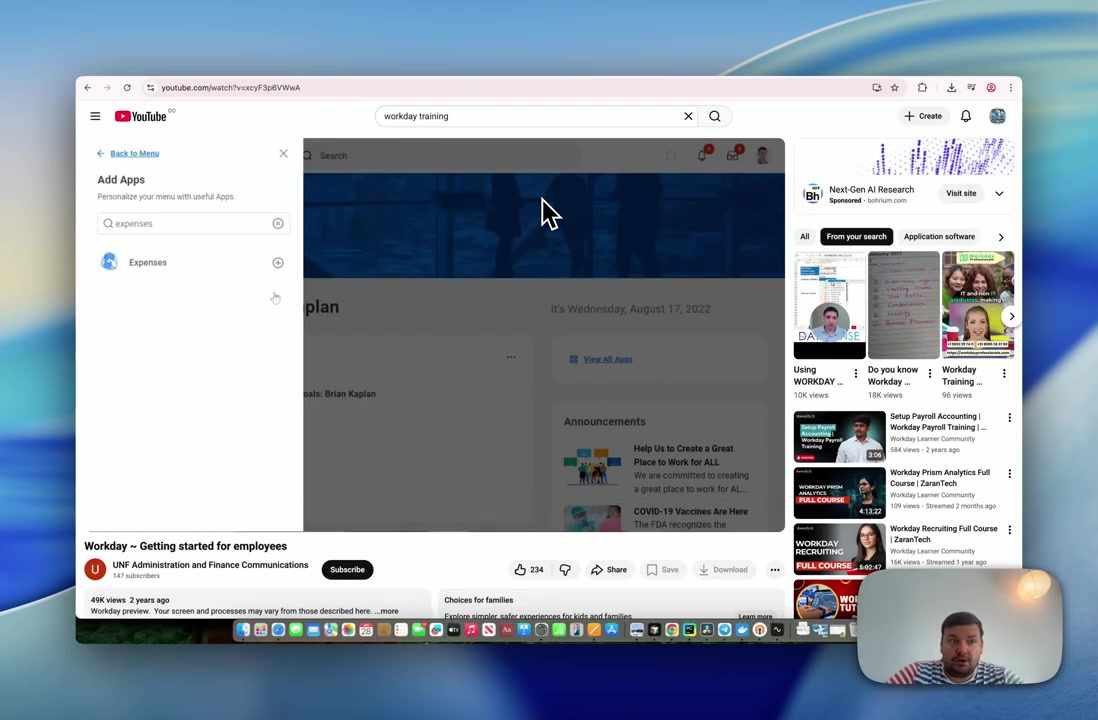
For this example, we're using "Workday ~ Getting started for employees" — a typical employee onboarding video covering navigation basics.

Step 2: Copy the Video URL
Copy the complete video URL from your browser's address bar. Docsie supports:
- YouTube links
- Loom recordings
- Vimeo videos
- Direct file uploads (MP4, MOV, etc.)
Step 3: Open Docsie Documentation Assistant
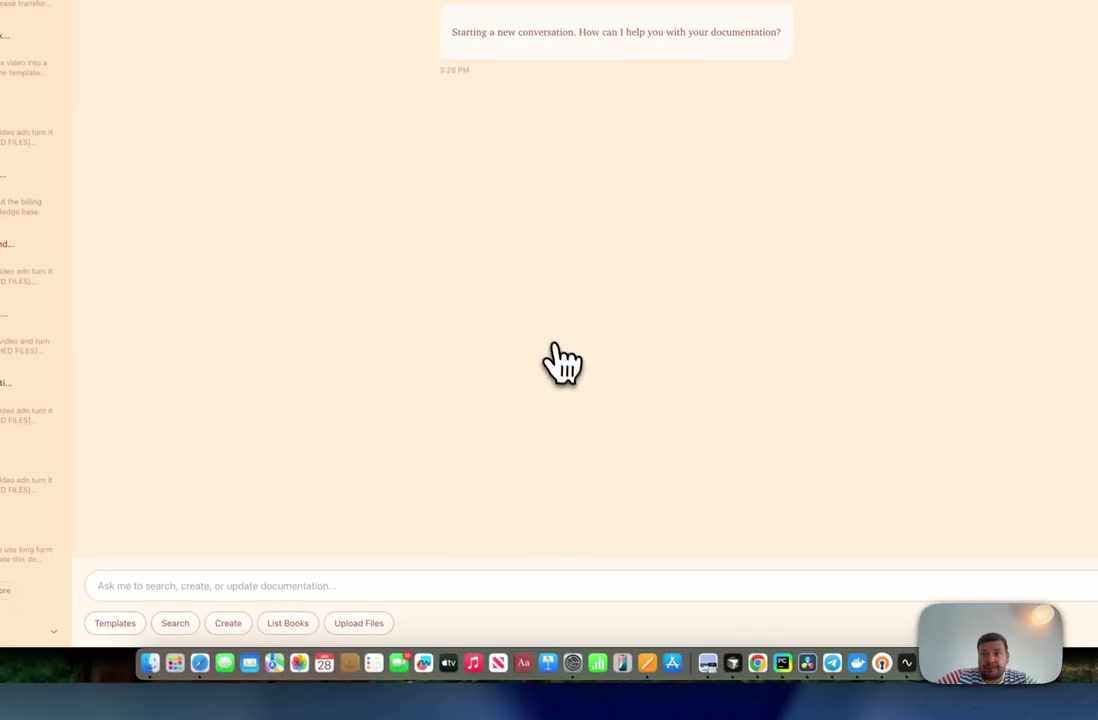
Log into your Docsie workspace and start a new chat in the Documentation Assistant. The conversational interface makes the process intuitive—just tell Docsie what you need.
Step 4: Submit Your Video
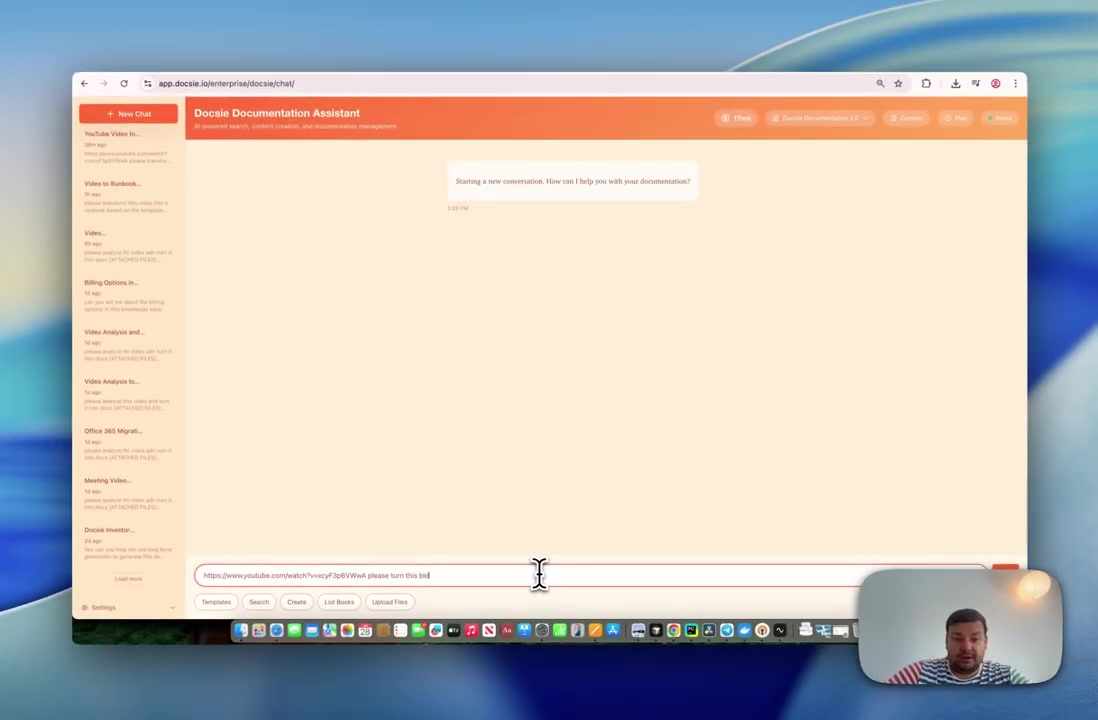
Paste the video URL into the chat and add your request:
"Please turn this video into documentation"
You can be more specific if needed:
"Convert this Workday training video into a comprehensive getting-started guide for new employees"
Step 5: Wait for Analysis
Docsie performs comprehensive analysis of your video:
What happens during processing:
- Audio transcription — All spoken content converted to text
- Visual analysis — Screen recordings and UI elements identified
- Screenshot capture — Key frames extracted automatically
- Content structuring — Logical sections and hierarchy created
- Context understanding — Distinguishes instructions from examples
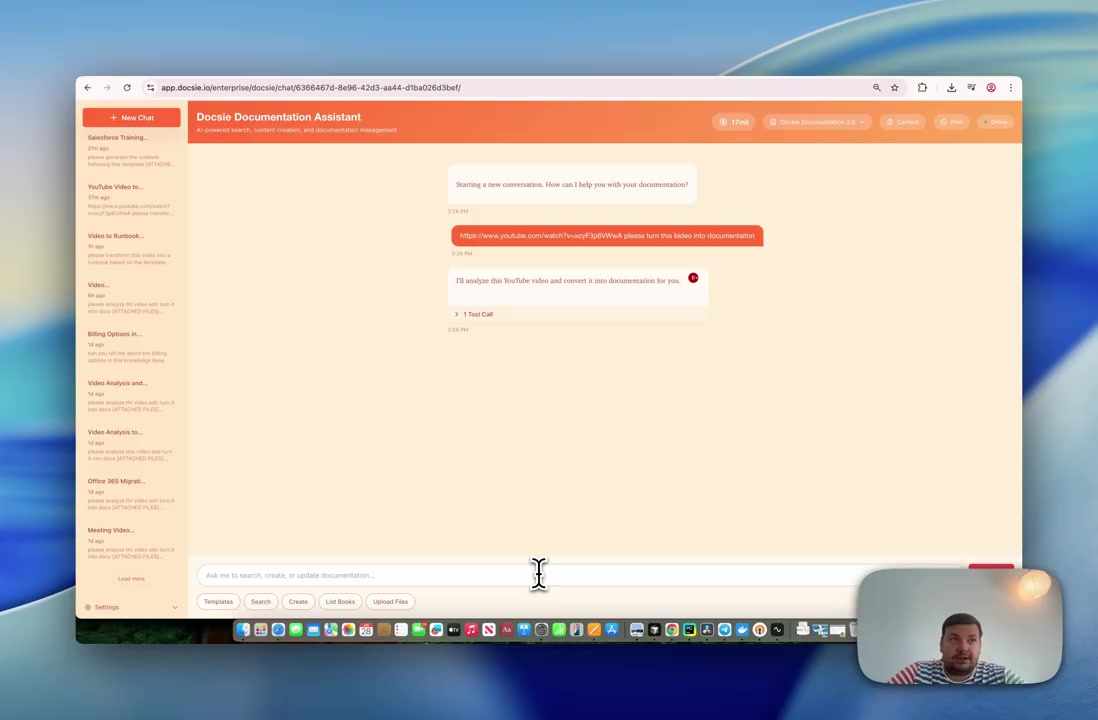
Step 6: Monitor Progress
Processing typically takes 2-15 minutes depending on video length. You'll see real-time status updates showing which phase is running and estimated completion time.
You can continue working on other tasks while Docsie processes your video in the background.
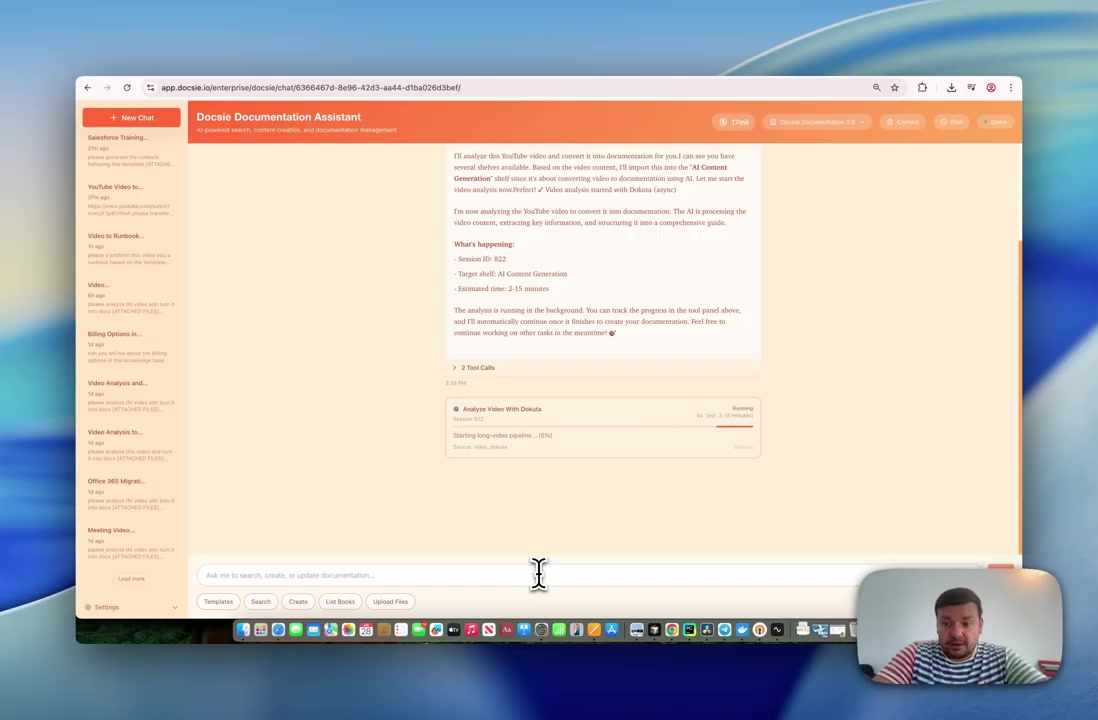
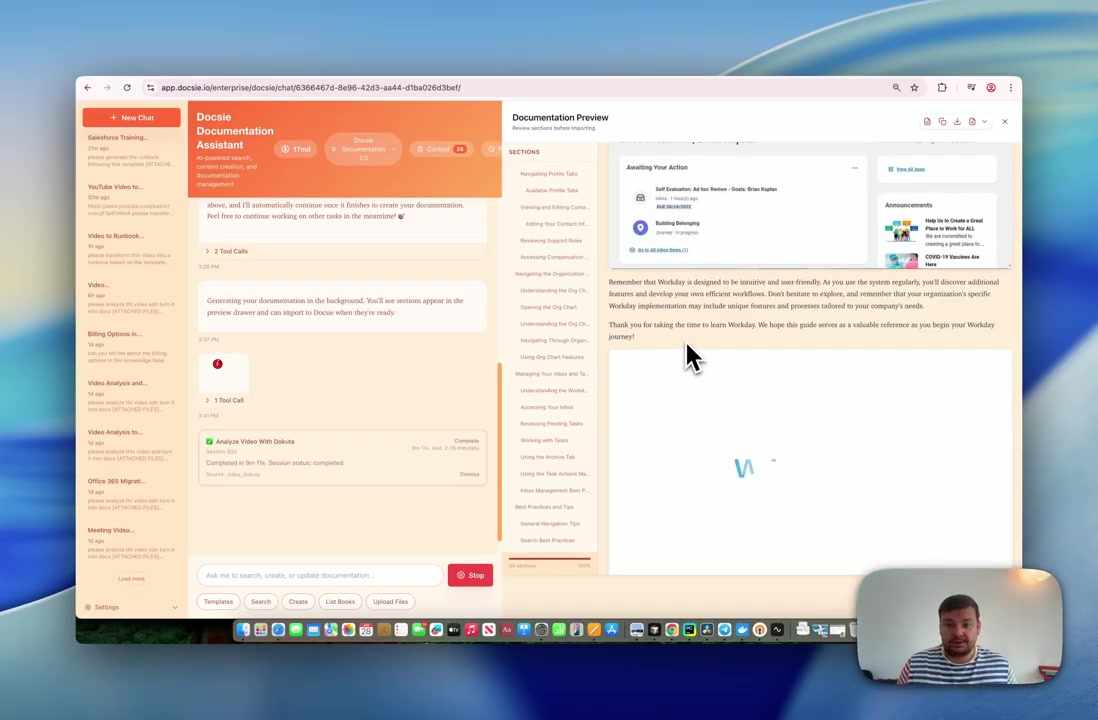
Step 7: Documentation Generation Begins
Once video analysis completes, Docsie starts generating your documentation. This phase transforms the extracted content into structured, formatted guides.
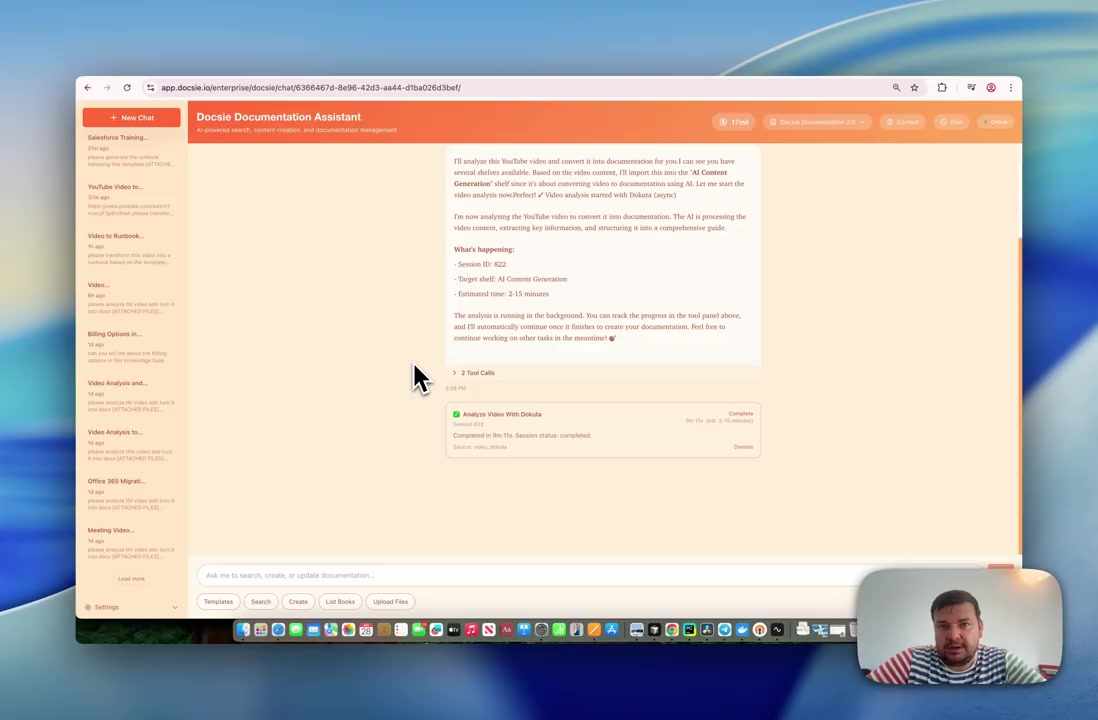
Step 8: Watch Documentation Take Shape
You can watch the documentation being generated in real-time. The preview panel shows each section as it's created:
- Title and introduction — Sets context for the guide
- Table of contents — Outlines all sections
- Step-by-step instructions — Core content from the video
- Screenshots — Visual references at relevant points
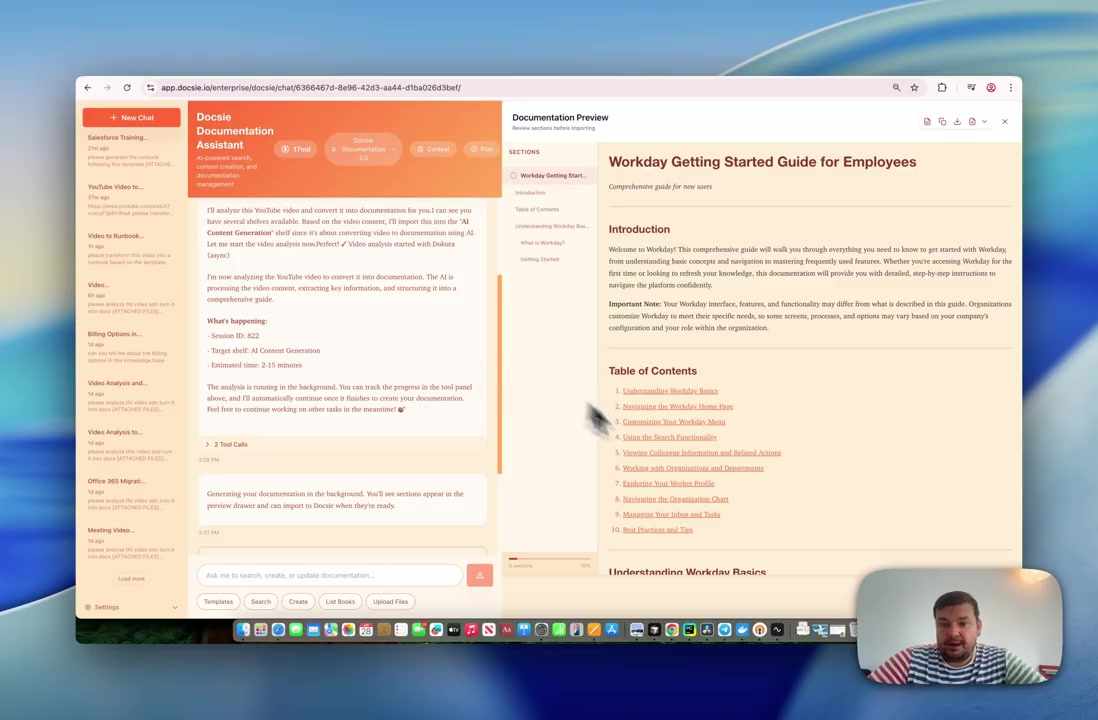
Step 9: Review Generated Documentation
When generation completes, review the full documentation. For comprehensive Workday training videos, you might see 30-40 pages covering dozens of distinct topics.
Review checklist:
- Are all important steps captured?
- Are screenshots placed correctly?
- Is the organization logical?
- Does the language match your audience?
Step 10: Request Edits and Enhancements
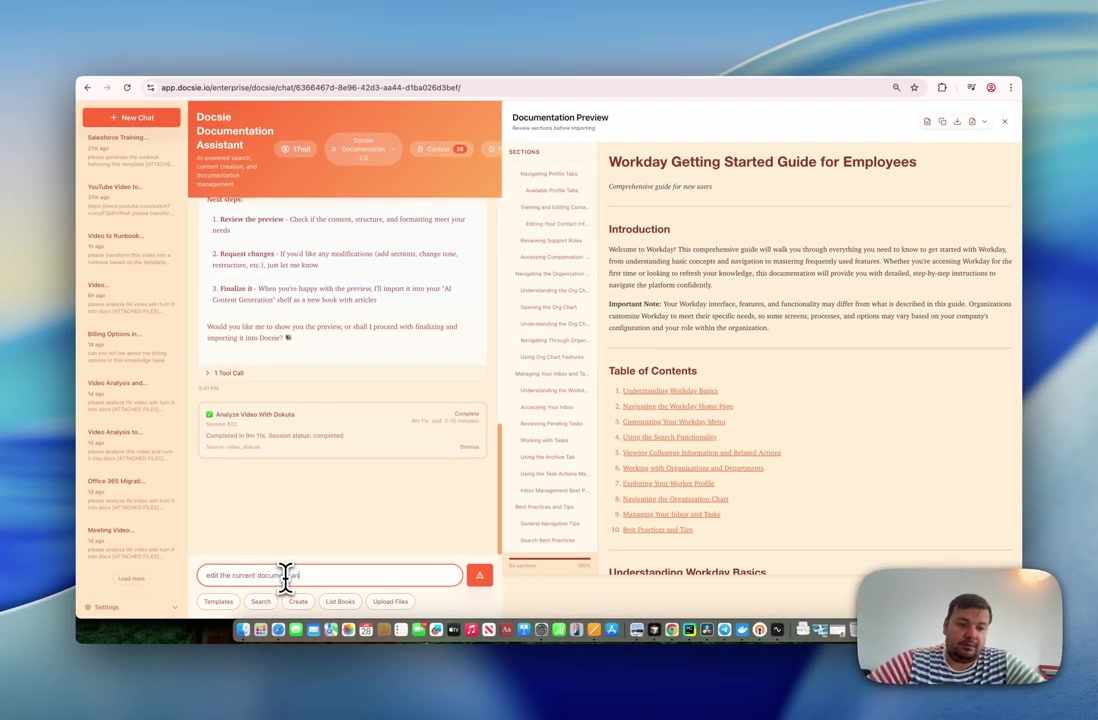
Use the chat interface to refine your documentation:
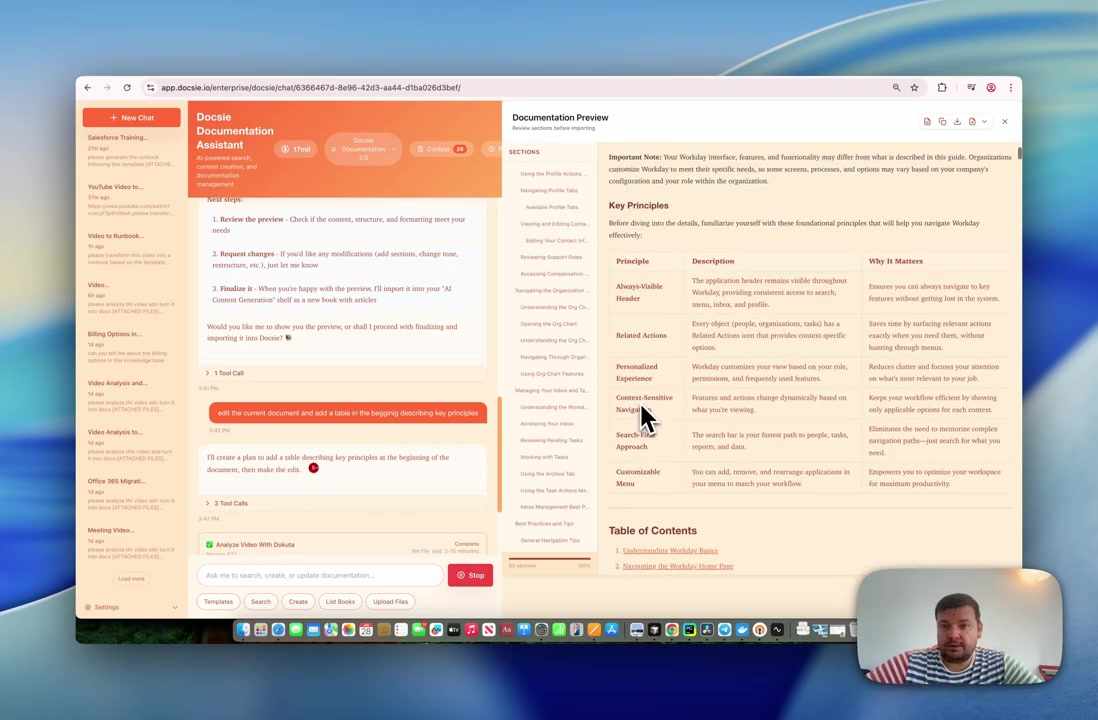
"Add a table at the beginning describing key Workday navigation principles"
"Expand the section on submitting expense reports"
"Make the language more beginner-friendly"
Docsie processes your requests and updates the documentation in real-time.
Step 11: Verify Your Changes
After each edit request, verify the changes in the preview panel. Check that new content is placed correctly, formatted consistently, and integrates well with existing sections.
Step 12: Publish and Distribute
When you're satisfied with the documentation:
- Import it into your Docsie knowledge base
- Publish to your employee portal or intranet
- Share links with your HR and training teams
- Set up translations for global employees
Common Workday Documentation Use Cases
| Video Content | Documentation Output |
|---|---|
| New employee orientation | Getting started guide |
| Time tracking walkthrough | Time entry procedures |
| Expense submission tutorial | Expense report guide |
| Benefits enrollment demo | Benefits selection guide |
| Manager approval training | Approval workflow documentation |
| Performance review process | Review cycle guide |
Benefits for HR and Training Teams
Reduce Support Tickets
When employees can search documentation for answers, they don't need to contact HR or IT support. A well-documented Workday knowledge base can significantly reduce "how do I..." questions.
Accelerate Onboarding
New hires can reference written guides while working in Workday. They don't have to remember everything from orientation videos—the documentation serves as their ongoing reference.
Maintain Consistency
Everyone accesses the same documentation, ensuring consistent understanding of processes across the organization. No more variations based on which training session someone attended.
Enable Self-Service
Employees become more self-sufficient when they can find answers independently. This frees HR teams to focus on strategic work rather than repetitive support questions.
Support Global Teams
Docsie can translate your Workday documentation into 40+ languages, essential for organizations with international employees using the same Workday instance.
Tips for Better Workday Documentation
Choose Comprehensive Source Videos
Videos that explain the "why" behind steps produce better documentation than those that just show clicks. Look for training content that includes context and explanations.
Organize by Employee Journey
Structure your documentation library around employee experiences: - Onboarding (first week tasks) - Regular activities (time, expenses, PTO) - Annual events (benefits enrollment, reviews) - Manager-specific (approvals, reporting)
Keep Documentation Current
When Workday updates or your processes change, update the documentation. Text is much easier to edit than re-recording videos.
Add Company-Specific Context
After generating documentation, use the edit feature to add your organization's specific policies, contacts, and procedures.
Getting Started
Ready to convert your Workday training videos into searchable documentation?
- Book a demo to see Docsie work with your Workday content
- Identify high-value videos — Start with frequently-referenced training
- Convert and customize — Let AI generate, then refine for your organization
- Publish to employees — Make Workday knowledge accessible