
Video to Text Converter: How to Turn YouTube Videos into Written Documentation
Looking for a video to text converter that goes beyond basic transcription? Most tools simply convert speech to text, leaving you with an unformatted wall of words. Docsie's Video to Docs feature takes a different approach—it analyzes your videos and produces fully structured documentation complete with screenshots, step-by-step instructions, and professional formatting.
This guide walks you through converting YouTube videos into polished user guides, training materials, and technical documentation.
Watch the full walkthrough:

What Makes a Video to Text Converter Different from Basic Transcription?
Standard transcription tools give you raw text—every "um," "uh," and rambling sentence captured verbatim. That's useful for captions or legal records, but it's not documentation.
When you convert video to text for documentation purposes, you need:
- Structured content organized into logical sections
- Screenshots captured at key moments to illustrate steps
- Clear instructions that users can actually follow
- Professional formatting with headings, lists, and tables
- Multiple export formats for different use cases
Docsie handles all of this automatically. You upload a video, the AI analyzes it, and you get documentation—not just a transcript.
Prerequisites and Preparation
Before starting the conversion process, gather these materials:
Source Video Requirements
Your video should: - Contain clear visual demonstrations of each step - Include verbal explanations or on-screen text - Show the complete workflow from start to finish - Be hosted on a supported platform (YouTube, Loom, or direct upload)
Supported Video Sources
| Source | Supported | Notes |
|---|---|---|
| YouTube | ✅ | Public and unlisted videos |
| Loom | ✅ | Direct link paste |
| MP4 Upload | ✅ | Any MP4 file from your computer |
| MOV Upload | ✅ | Apple format supported |
| Zoom Recordings | ✅ | Upload the MP4 export |
| Teams Recordings | ✅ | Upload the MP4 export |
| Vimeo | ✅ | Direct link paste |
| Google Drive | ✅ | Shareable video links |
Step-by-Step: Converting Your Video
Step 1: Access the Platform
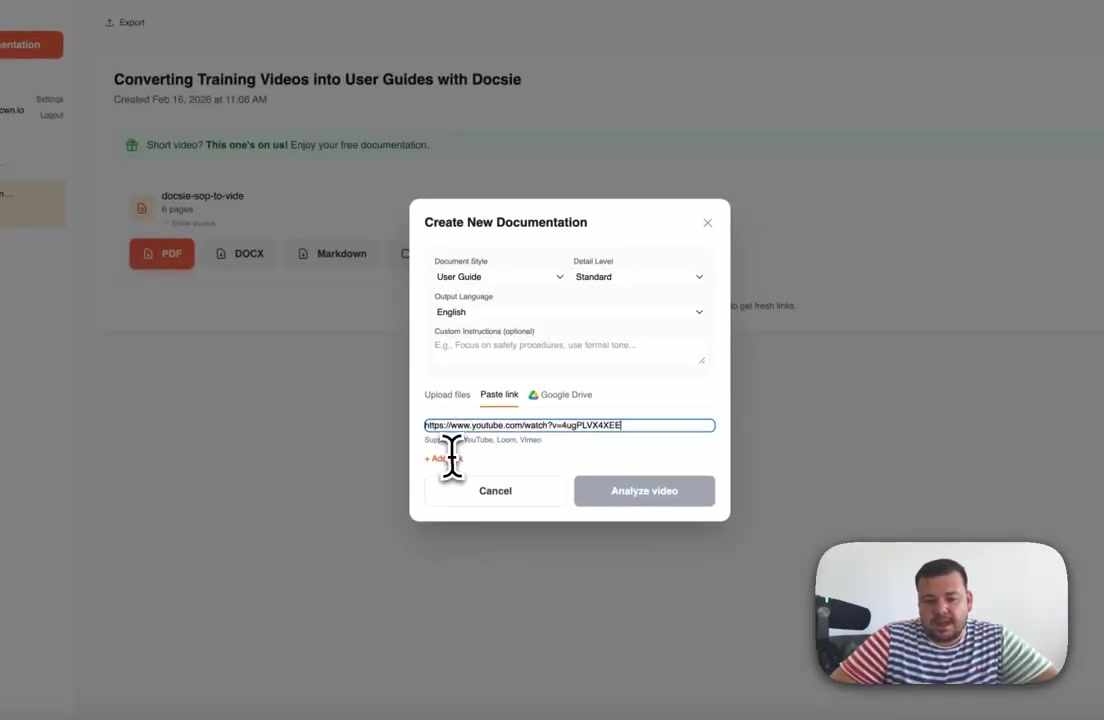
Log into your Docsie workspace and navigate to the Video to Docs section. Click "New Documentation" in the left sidebar to open the project creation dialog.
Step 2: Enter Your Video URL
In the popup window, select the "Paste link" tab for YouTube videos (or choose the appropriate tab for other sources). Enter your complete video URL:
https://www.youtube.com/watch?v=4ugPLVX4XEE
Step 3: Configure Documentation Settings
Before processing, customize the output:
| Setting | Options | Recommendation |
|---|---|---|
| Document Style | User Guide, Tutorial, Reference Guide | User Guide for most instructional content |
| Detail Level | Brief, Standard, Comprehensive | Standard for balanced documentation |
| Output Language | English, Spanish, French, German, + 20 more | Match your target audience |
| Custom Instructions | Free-form text field | Add specific requirements or terminology |
Step 4: Start the Analysis
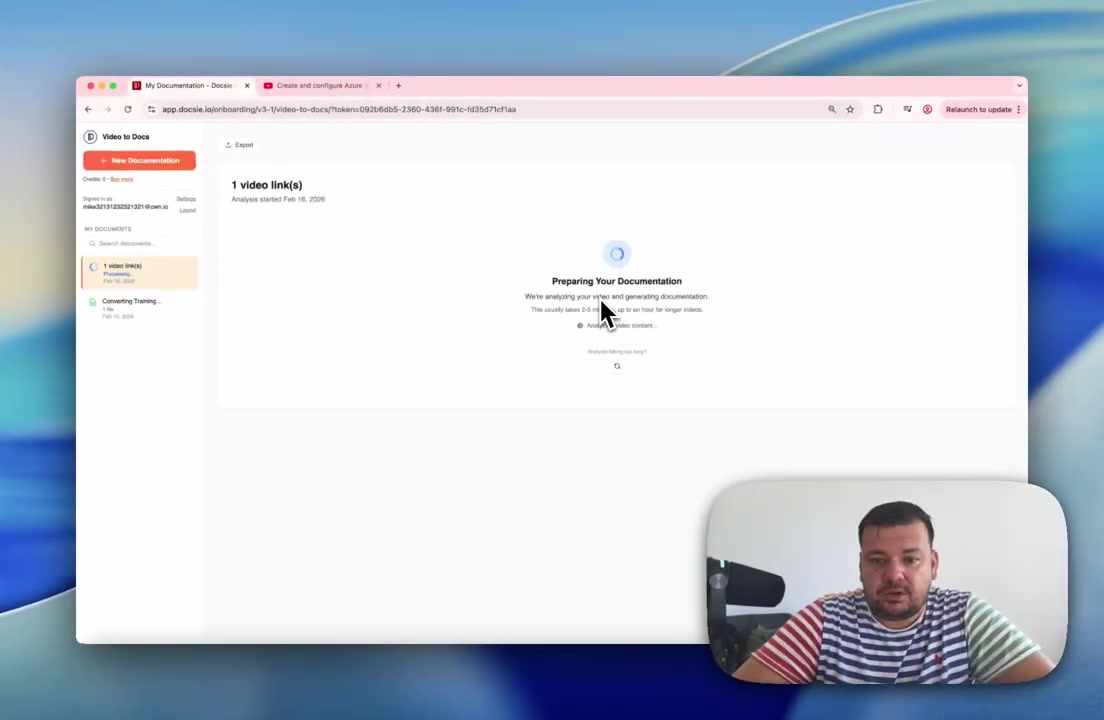
Click "Analyze video" to begin processing. The AI performs several operations:
- Frame-by-frame analysis to identify key actions
- Audio transcription of all spoken content
- Screenshot capture at critical moments
- Content structuring into logical sections
- Formatting with proper headings and lists
Processing Times
The conversion speed is remarkably fast:
| Video Length | Processing Time |
|---|---|
| Under 10 minutes | ~3 minutes |
| 10-30 minutes | ~5-8 minutes |
| 1-2 hours | ~15 minutes |
You can navigate away while processing completes in the background.
Step 5: Review Generated Documentation
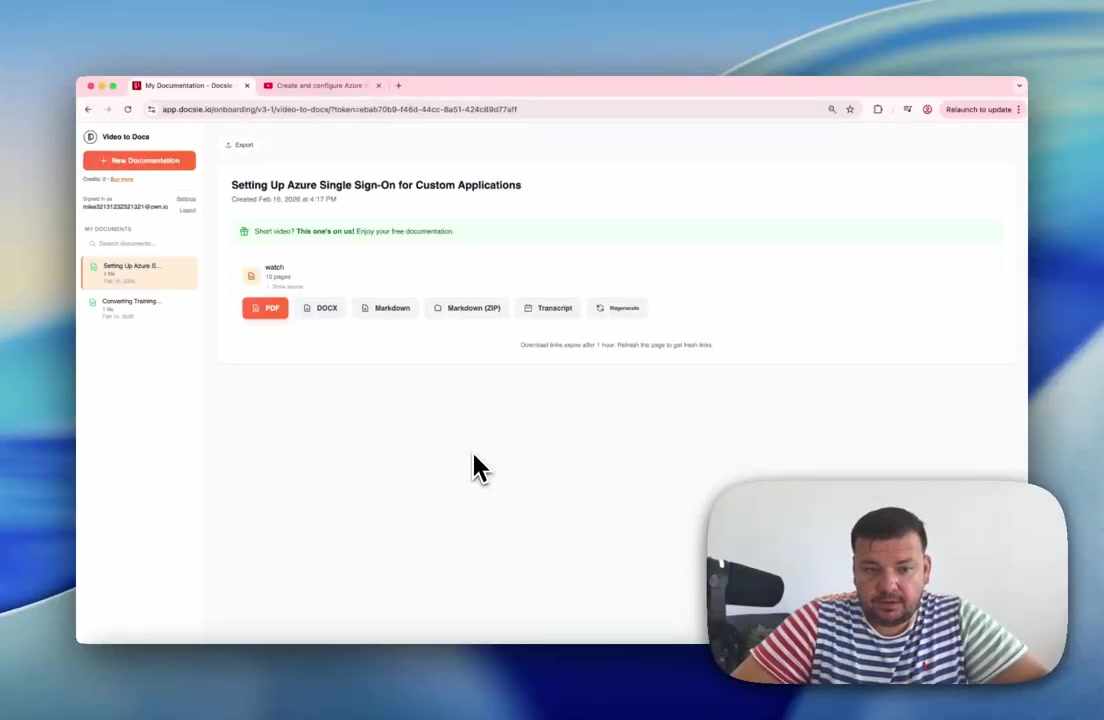
Once processing finishes, you'll see your complete documentation with:
- Professional title page with the documentation topic
- Table of contents for easy navigation
- Step-by-step instructions with numbered actions
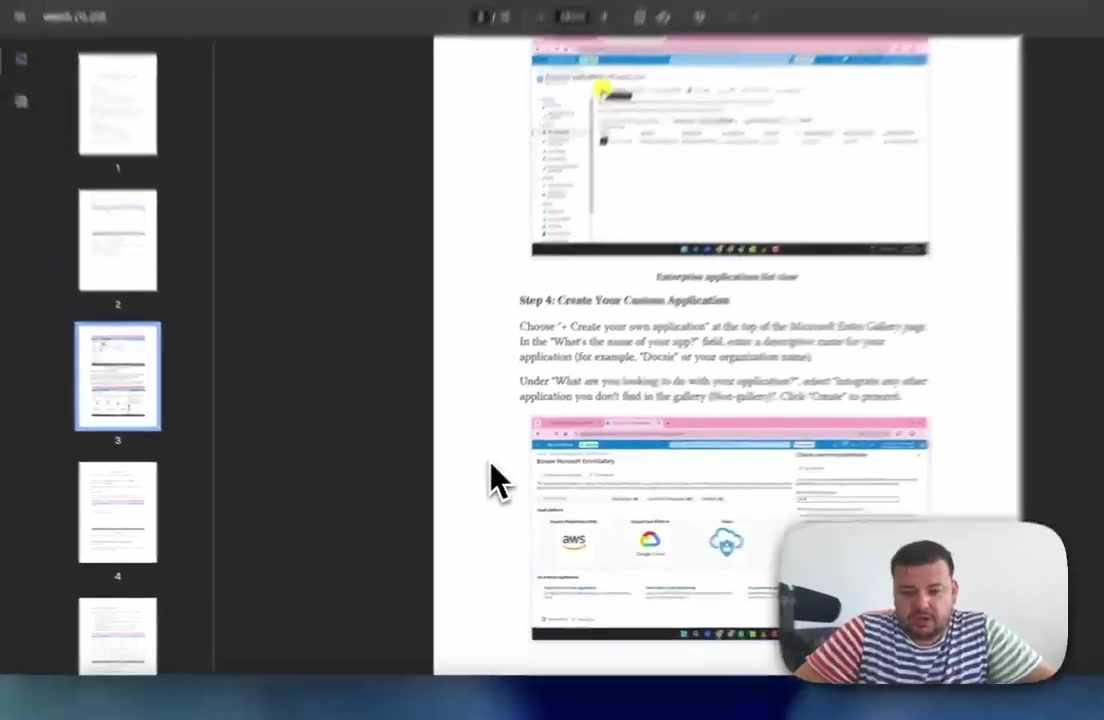
- Contextual screenshots positioned where they're most relevant
- Descriptive explanations expanding on the visual content
- Full transcript in an appendix section
Step 6: Export Your Documentation
Choose the format that fits your needs:
| Format | Best For |
|---|---|
| Sharing via email, printing, document repositories | |
| DOCX | Further editing in Microsoft Word |
| Markdown | Documentation platforms, static site generators, Git repos |
| Markdown (ZIP) | Complete package with all images included |
| Transcript | Plain text for accessibility, translation, or reference |
The Difference: Raw Transcription vs. Structured Documentation
What Basic Transcription Gives You
"okay so now we're going to click on the settings button and then
you'll see the menu pop up and we need to go to the SSO section
which is right here and then click configure and then you're going
to see this wizard pop up and we need to fill in the fields..."
A wall of unformatted text. No structure. No images. Impossible to scan or follow.
What Docsie Produces
Step 3: Configure SSO Settings
- Click the Settings button in the top navigation bar
- Select SSO from the dropdown menu
- Click Configure to open the SSO setup wizard
- Complete the required fields as shown below
![Screenshot of SSO configuration screen with fields highlighted]
Note: Record the Application ID displayed on this screen—you'll need it for the next step.
Structured, scannable, actionable documentation with visual references and helpful callouts.
Use Cases for Video-to-Documentation Conversion
Software Tutorials
Convert product demo videos into comprehensive user guides. Every click, every screen, every configuration option gets captured and documented.
Employee Training
Transform training session recordings into written SOPs that new hires can reference alongside the video. Reduces "can you show me again?" requests.
Customer Support
Turn support call recordings or troubleshooting videos into knowledge base articles. Your support team's expertise becomes searchable documentation.
Configuration Guides
Create step-by-step setup documentation from walkthrough videos. Perfect for IT teams documenting system configurations.
Compliance Documentation
Maintain written records of training content for audit purposes. Video plus documentation satisfies both learning styles and compliance requirements.
Onboarding Materials
Convert onboarding videos into written guides that employees can reference at their own pace, without rewatching entire videos.
Best Practices for Better Results
For Audio Quality
- Use a quality microphone when recording
- Minimize background noise
- Speak clearly at a moderate pace
- Avoid multiple people talking simultaneously
- Announce each major step verbally
For Video Quality
- Record at 1080p or higher resolution
- Ensure good lighting on your screen
- Pause briefly (2-3 seconds) on important screens
- Avoid rapid mouse movements
- Keep relevant content visible in frame
For Better Documentation Structure
- Start with an overview of what you'll demonstrate
- Announce transitions between sections
- Use consistent terminology throughout
- Summarize key points at the end
- Mention specific names, values, and settings verbally
Advanced Features
Transcript Access
The full audio transcript is available separately—useful for: - Creating searchable text versions - Translation into other languages - Accessibility compliance - Content review and quality assurance
Regeneration Options
Need to modify the output? Use the Regenerate button to: - Adjust detail levels - Change output language - Modify style preferences - Generate versions for different audiences
Download Link Management
Export links remain active for one hour. If they expire, simply refresh the page to generate new links—no need to reprocess the video.
Comparison: Transcription Tools vs. Docsie
| Feature | Basic Transcription | Video to Text Converter (Docsie) |
|---|---|---|
| Audio transcription | ✅ | ✅ |
| Screenshot capture | ❌ | ✅ |
| Step-by-step formatting | ❌ | ✅ |
| Structured sections | ❌ | ✅ |
| Table of contents | ❌ | ✅ |
| PDF export | ❌ | ✅ |
| DOCX export | ❌ | ✅ |
| Markdown export | ❌ | ✅ |
| Multi-language support | Limited | 20+ languages |
| Custom styling | ❌ | ✅ |
Conclusion
Converting video content to written documentation no longer requires hours of manual work—pausing, screenshotting, and typing. With the right video to text converter, you upload a video and receive professional documentation in minutes.
Whether you're documenting software tutorials, creating training materials, building a knowledge base, or maintaining compliance records, automated video-to-documentation conversion saves significant time while ensuring nothing gets missed.
Get Started
Ready to turn your videos into professional documentation?