
How to Use Docsie Templates to Generate AI-Powered Video Documentation
Converting a training video into documentation is one thing. Converting it into documentation that follows your organization's standards—with consistent structure, required sections, and proper formatting—is another challenge entirely.
Docsie's template system solves this by letting you define the output structure before the AI processes your video. Instead of getting a generic document that needs heavy reformatting, you get documentation that matches your existing standards from the start.
Watch the full tutorial:
Why Templates Matter for Video Documentation
When you convert video to documentation without a template, you get whatever structure the AI thinks is appropriate. Sometimes that's fine. But often you need:
- Consistent formatting across all your documentation
- Required sections that your organization mandates (prerequisites, troubleshooting, contacts)
- Specific document types like runbooks, SOPs, or training guides
- Compliance-friendly structure for regulated industries
Templates give you control over the output while still letting AI do the heavy lifting of extraction and writing.
Available Templates
Docsie includes pre-built templates for common documentation types:
| Template | Best For |
|---|---|
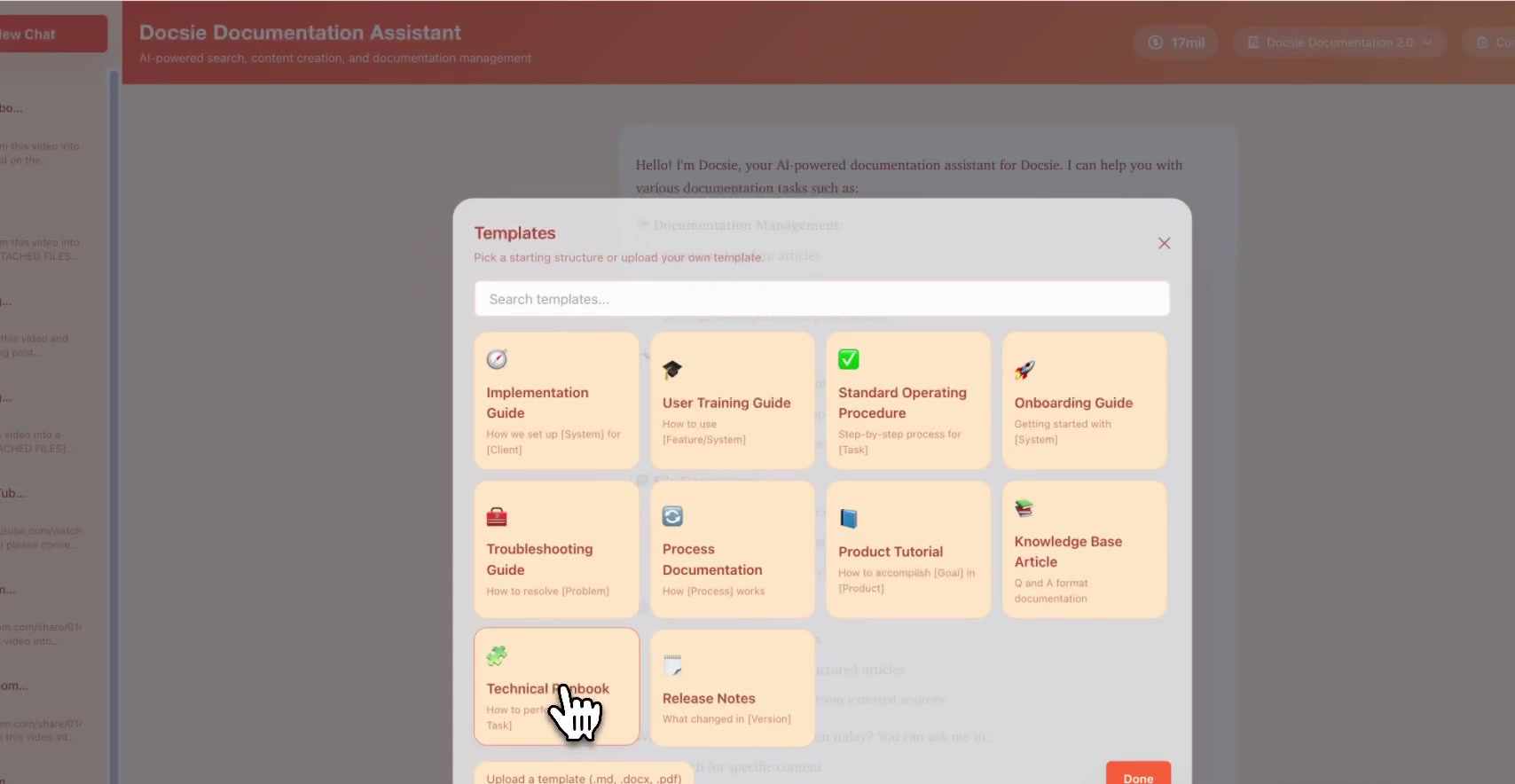
| Implementation Guide | Software deployments, system setup |
| User Training Guide | End-user training materials |
| Standard Operating Procedure | Repeatable business processes |
| Onboarding Guide | New employee or customer onboarding |
| Troubleshooting Guide | Problem resolution workflows |
| Process Documentation | Business process documentation |
| Product Tutorial | Feature walkthroughs, how-to guides |
| Knowledge Base Article | Support articles, FAQs |
| Technical Runbook | IT operations, system administration |
| Release Notes | Product updates, changelog |
You can also create custom templates that match your organization's specific requirements.
Step-by-Step: Template-Based Video Documentation
Step 1: Access the Documentation Assistant
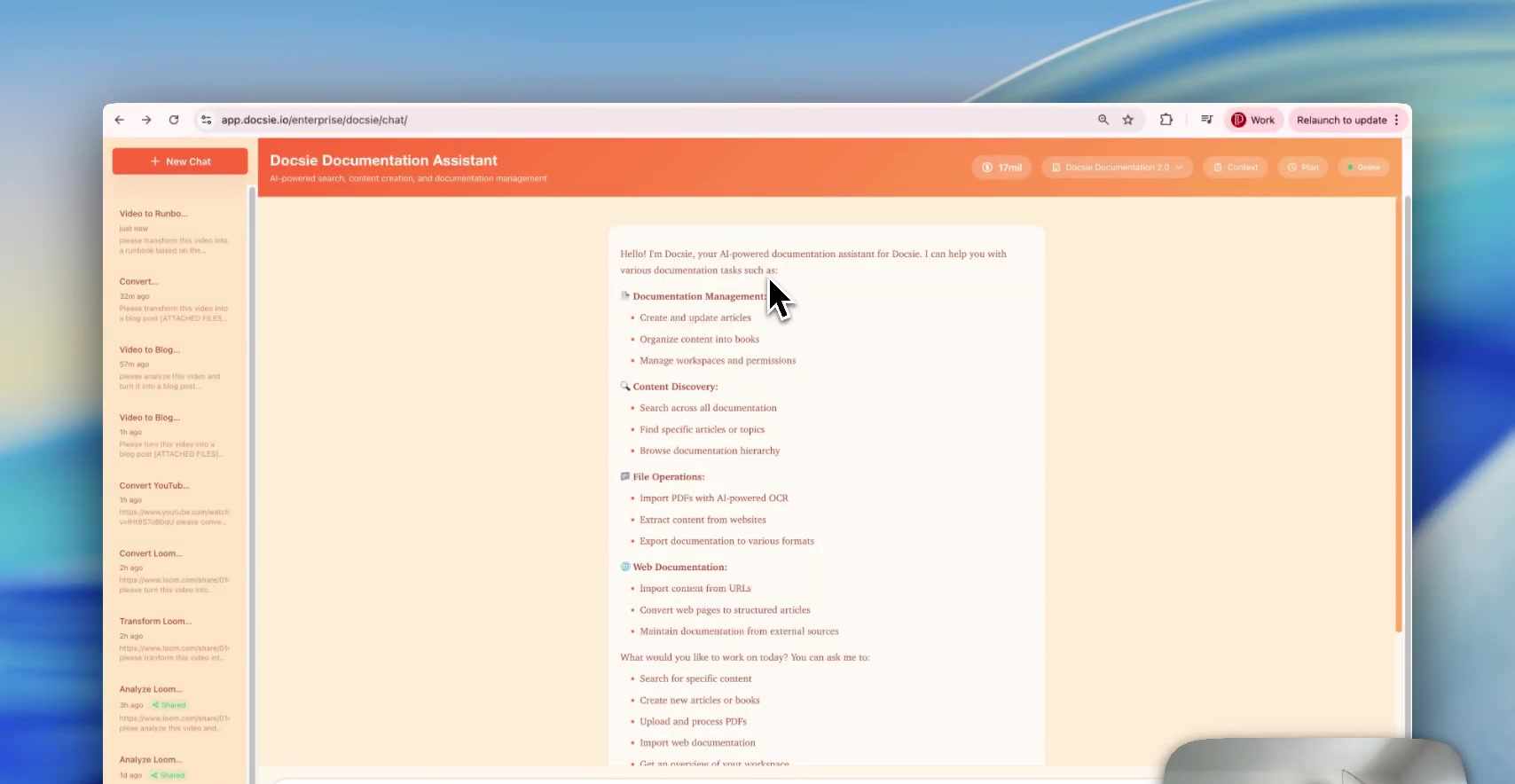
Log into your Docsie workspace and navigate to the Documentation Assistant. The dashboard shows your recent documentation requests and available actions.
Step 2: Open the Templates Menu
Click Templates to open the template selection dialog. You'll see all available templates with descriptions of what each one produces.
Step 3: Select Your Template
Choose the template that matches your documentation needs. For this example, we'll use Technical Runbook—ideal for IT operations documentation that needs structured sections for procedures, validation, and troubleshooting.
Click your chosen template to proceed.
Step 4: Upload Your Video
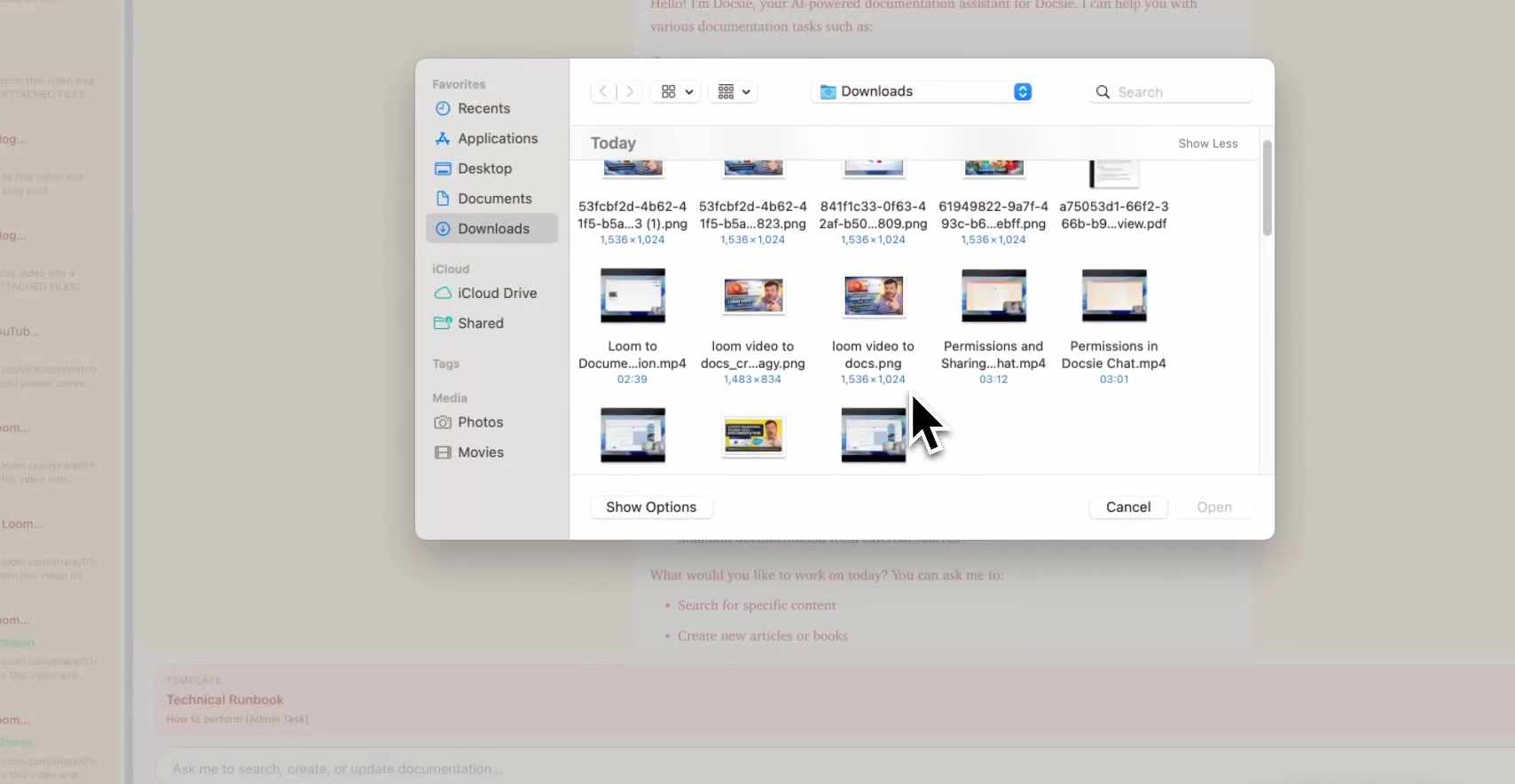
After selecting a template, you'll be prompted to upload your video file:
- Click the upload area
- Select your video file (MP4, MOV, or other supported formats)
- Confirm the upload
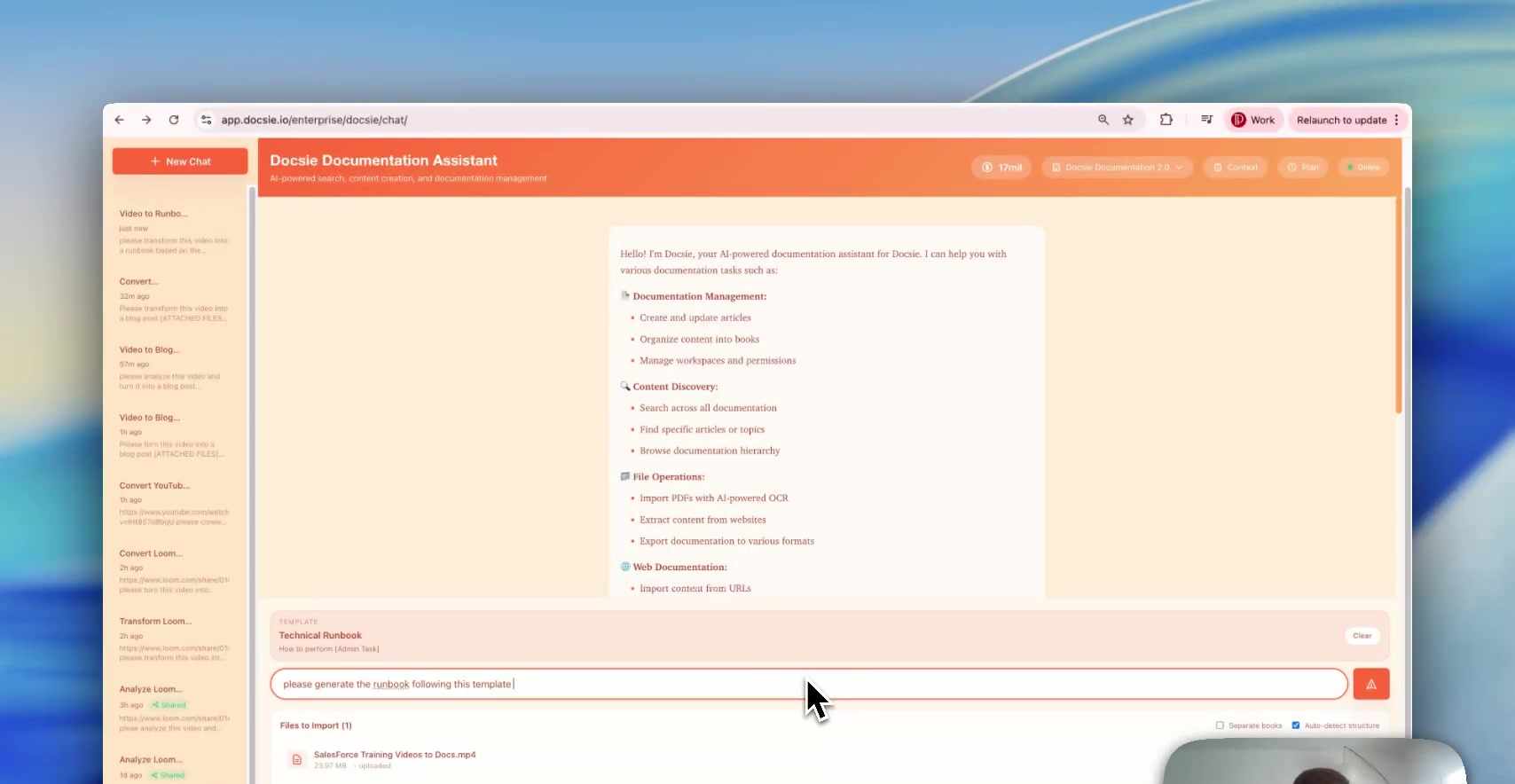
Step 5: Request Generation
Once the video uploads, tell Docsie to generate documentation using your selected template:
"Please generate the runbook following this template"
The specific wording can vary—Docsie understands natural language requests.
Step 6: Wait for Processing
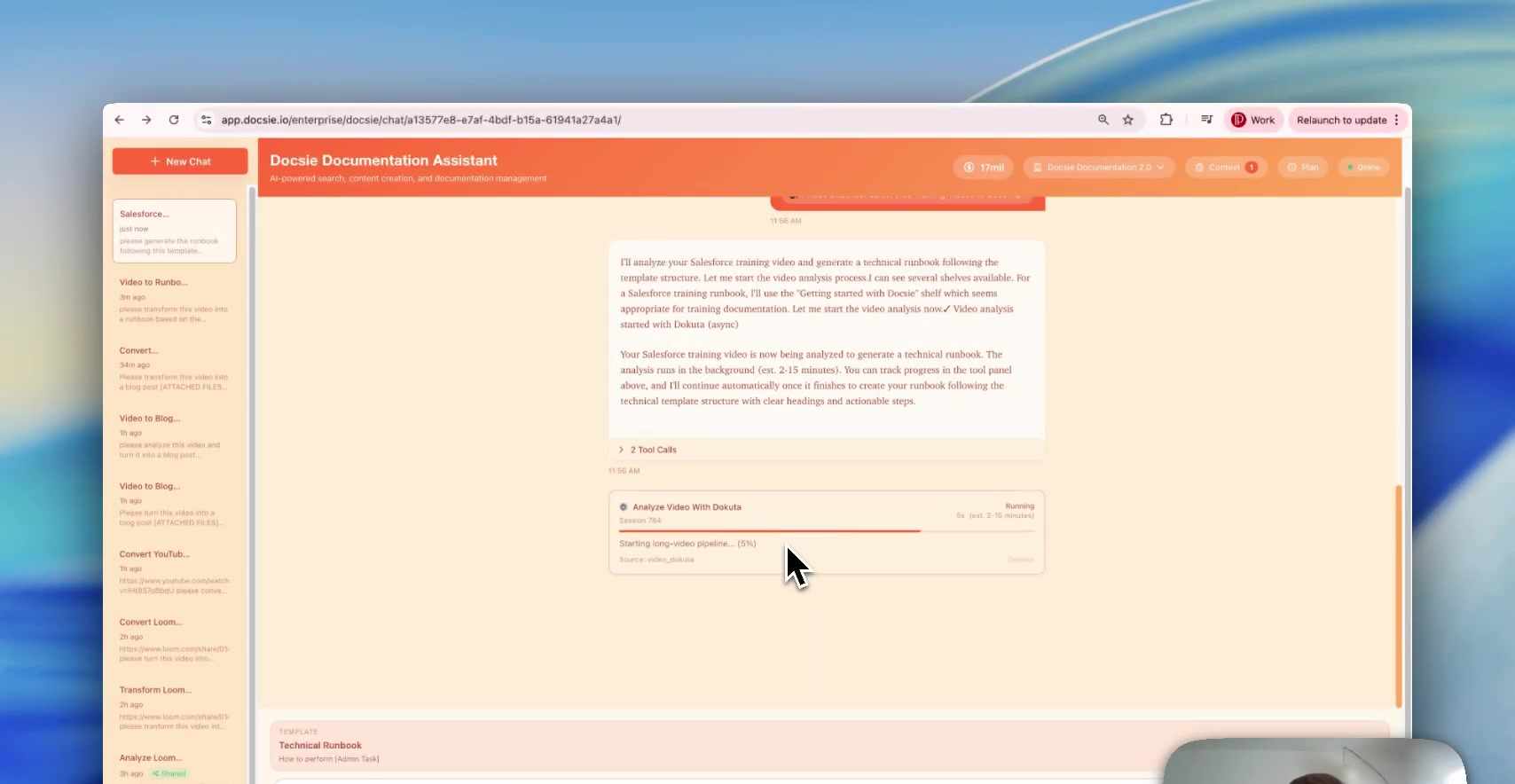
The AI analyzes your video content:
- Transcribes all spoken narration
- Extracts visual information from screen recordings
- Captures screenshots at key moments
- Maps content to template sections
- Generates structured documentation
A progress bar shows the current status. Processing typically takes 2-15 minutes depending on video length.
Step 7: Review Generated Documentation
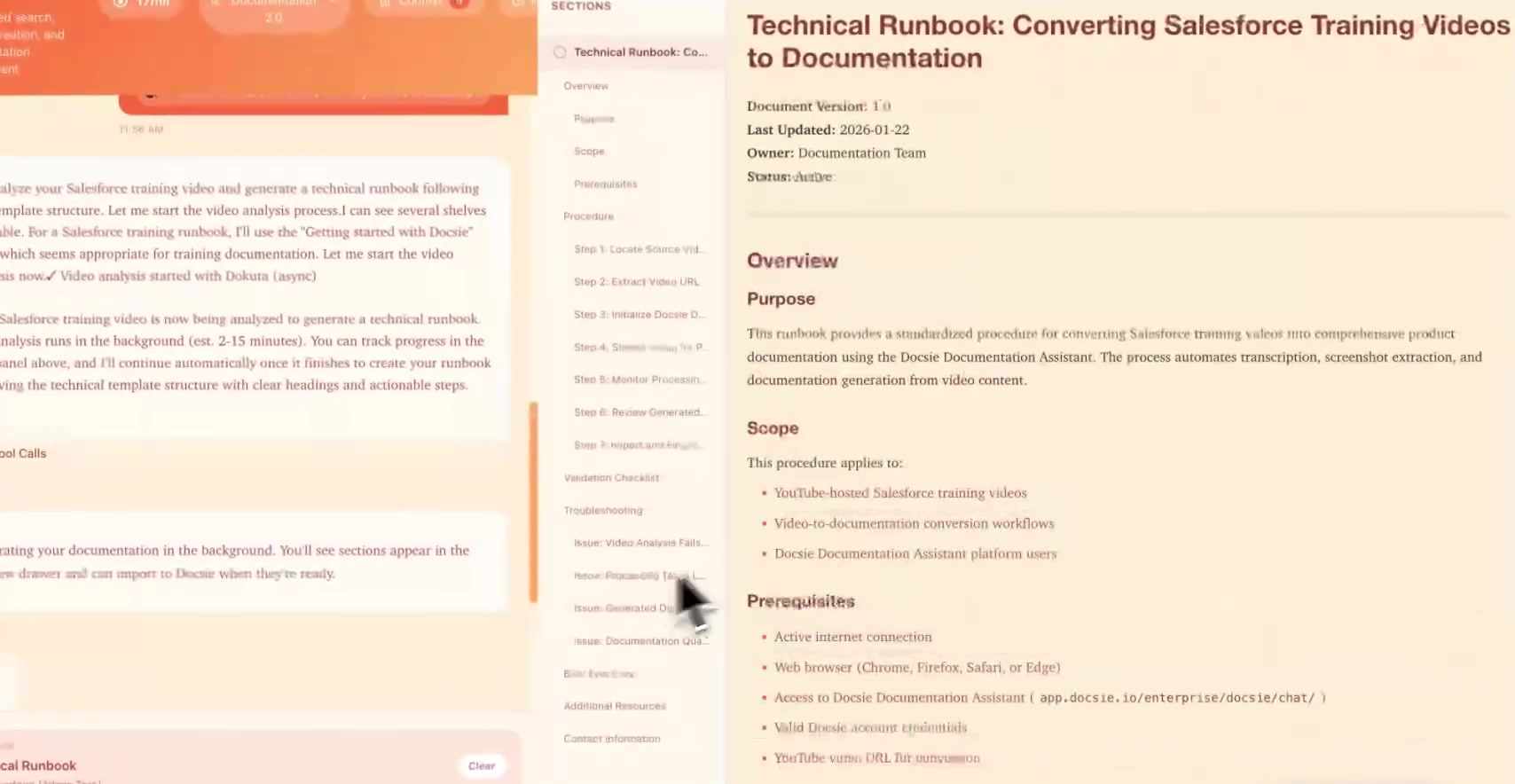
When processing completes, the documentation preview shows your structured output. Because you selected the Technical Runbook template, the documentation includes:
- Overview — What this runbook covers
- Purpose — Why this documentation exists
- Scope — What's included and excluded
- Prerequisites — What's needed before starting
- Step-by-step Procedures — The main content from your video
- Validation Checklist — How to verify success
- Troubleshooting — Common issues and solutions
- Best Practices — Recommendations and tips
- Contact Information — Who to reach for help
All sections are populated with content extracted from your video, organized according to the template structure.
Step 8: Refine and Customize
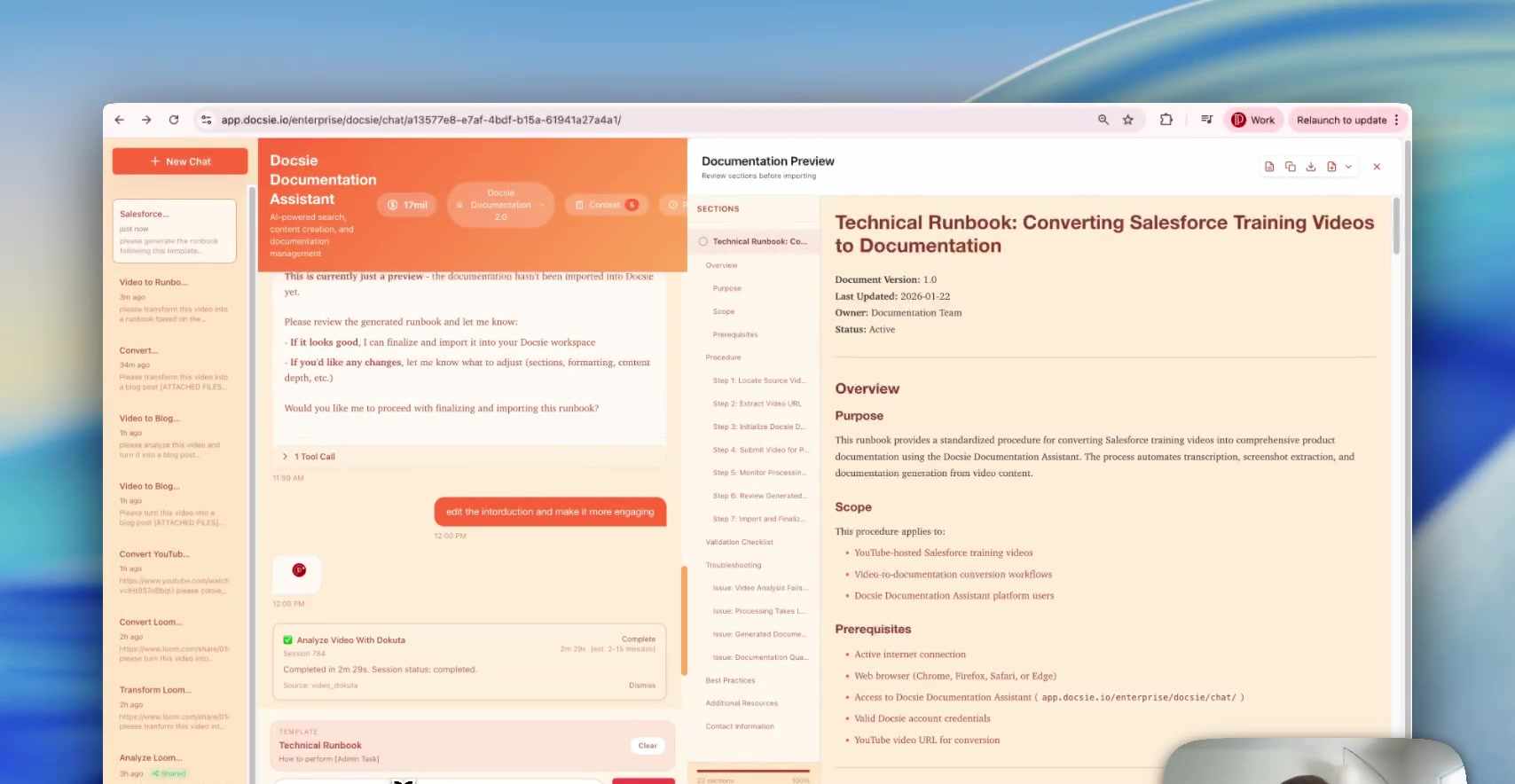
Use the chat interface to make adjustments:
"Edit the introduction and make it more engaging"
"Add more detail to the troubleshooting section"
"Include a diagram showing the workflow"
The AI processes each request and updates the documentation in real-time.
Step 9: Publish
When you're satisfied with the documentation:
- Import it into your Docsie workspace
- Assign it to the appropriate book or category
- Publish to your knowledge base or portal
- Share with your team
Template Use Cases
Technical Runbook
Best for: IT operations, system administration, DevOps procedures
Includes sections for prerequisites, step-by-step procedures, validation, troubleshooting, and escalation contacts. Perfect for converting screen recordings of system configurations or deployment processes.
Standard Operating Procedure
Best for: Repeatable business processes, compliance documentation
Structured for regulatory requirements with clear ownership, revision history, and approval sections. Ideal for converting training videos that document official procedures.
User Training Guide
Best for: End-user documentation, software training
Focuses on learning objectives, step-by-step instructions, and practice exercises. Great for converting product walkthrough videos into user-friendly guides.
Troubleshooting Guide
Best for: Support documentation, problem resolution
Organized around symptoms, causes, and solutions. Perfect for converting videos that show how to diagnose and fix common issues.
Benefits of Template-Based Generation
Consistency
Every document follows the same structure, regardless of who creates it or what video source is used. Your documentation library looks professional and organized.
Completeness
Templates ensure required sections are always included. You won't forget to add prerequisites or troubleshooting steps because the template prompts for them.
Efficiency
Instead of reformatting AI output to match your standards, the output matches from the start. Less editing means faster publication.
Compliance
For regulated industries, templates can enforce required sections and formatting. Audit trails and approval workflows become straightforward.
Scalability
Once you have templates that work, converting additional videos follows the same predictable process. Training new team members is simple.
Tips for Better Results
Choose the Right Template
Match the template to your content. A troubleshooting video should use the Troubleshooting Guide template, not a generic Knowledge Base Article.
Record with Structure in Mind
If you know you'll use a specific template, record your video to match that structure. Cover prerequisites at the start, main procedures in the middle, and troubleshooting at the end.
Customize Templates
Docsie's default templates work well, but you can create custom templates that match your organization's exact requirements—specific sections, branding, required fields.
Review Section by Section
After generation, review each template section individually. It's easier to catch issues when you focus on one section at a time.
Getting Started
Ready to create structured documentation from your training videos?
- Book a demo to see templates in action with your content
- Identify your documentation types — What templates would serve your needs?
- Start with a standard template — Test the workflow before customizing
- Build your library — Create consistent documentation at scale