
How to Turn Your Videos into Professional Documentation in Minutes (Using AI)
Ever wished you could magically transform your training videos, product demos, or tutorial recordings into polished, professional documentation? Well, the future is here, and it's powered by AI. Today, I'm going to walk you through my experience using the Docsie Documentation Assistant to convert a SAP tutorial video into comprehensive documentation—and trust me, the results were impressive.
Why Video-to-Documentation Matters
Let's face it: creating documentation is time-consuming. You record a video showing how to use your software, demonstrate a process, or explain a complex workflow, and then you have to write it all out again. It's redundant, tedious, and frankly, most of us would rather skip it.
But here's the thing—not everyone learns the same way. Some people love videos, while others prefer written guides they can follow at their own pace. The ideal solution? Having both. And that's exactly what AI-powered documentation tools make possible.
Meet the Docsie Documentation Assistant
The Docsie Documentation Assistant is a powerful platform that does way more than just convert videos. It's a comprehensive documentation hub where you can export content from websites, import content from URLs, convert web pages into structured articles, manage PDFs, and—the star feature we're focusing on today—analyze video files to automatically generate documentation.
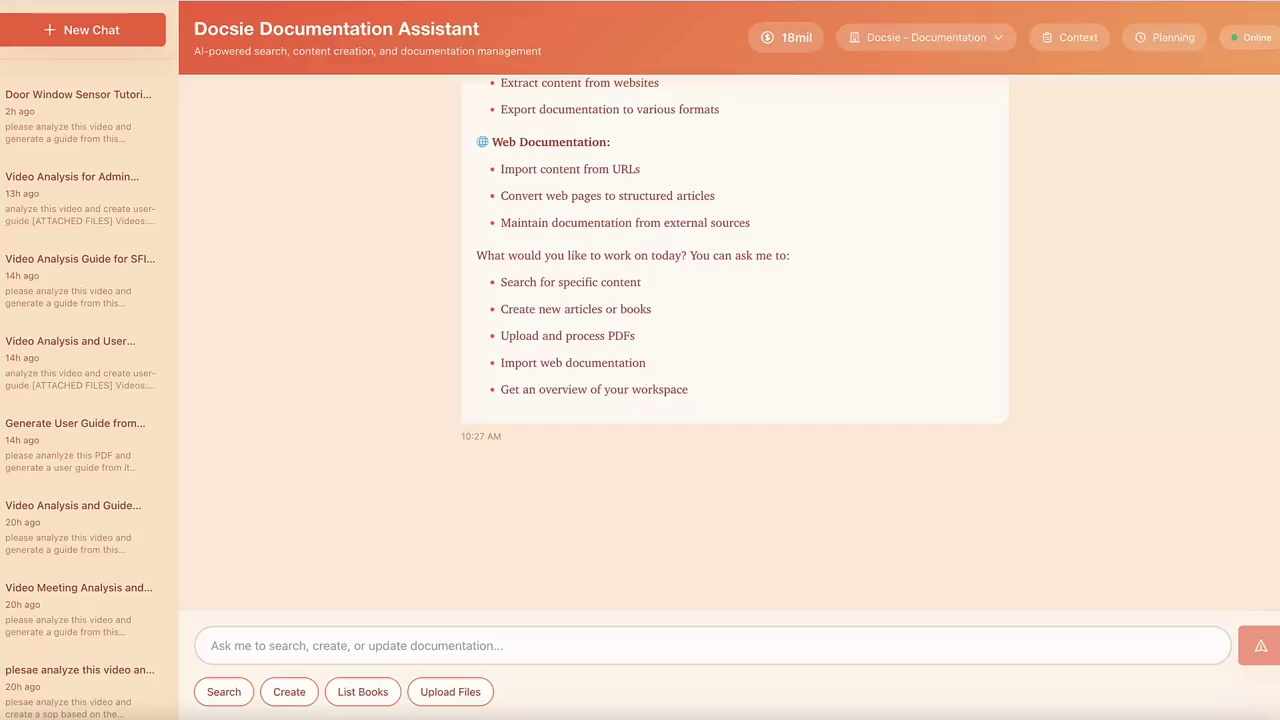
When you first open the platform, you're greeted with a clean, intuitive dashboard. Everything you need is right there—no hunting through menus or getting lost in complicated interfaces. It's designed for people who want to get things done quickly.
Step One: Upload Your Video
Getting started couldn't be simpler. At the bottom of the dashboard, there's an "Upload Files" button. Click it, and a file selection dialog opens up. For my test, I used a video called "Generate SAP Tutorial W2V21 Demo.mp4"—a recording showing how to create purchase orders in SAP's ME21N transaction.
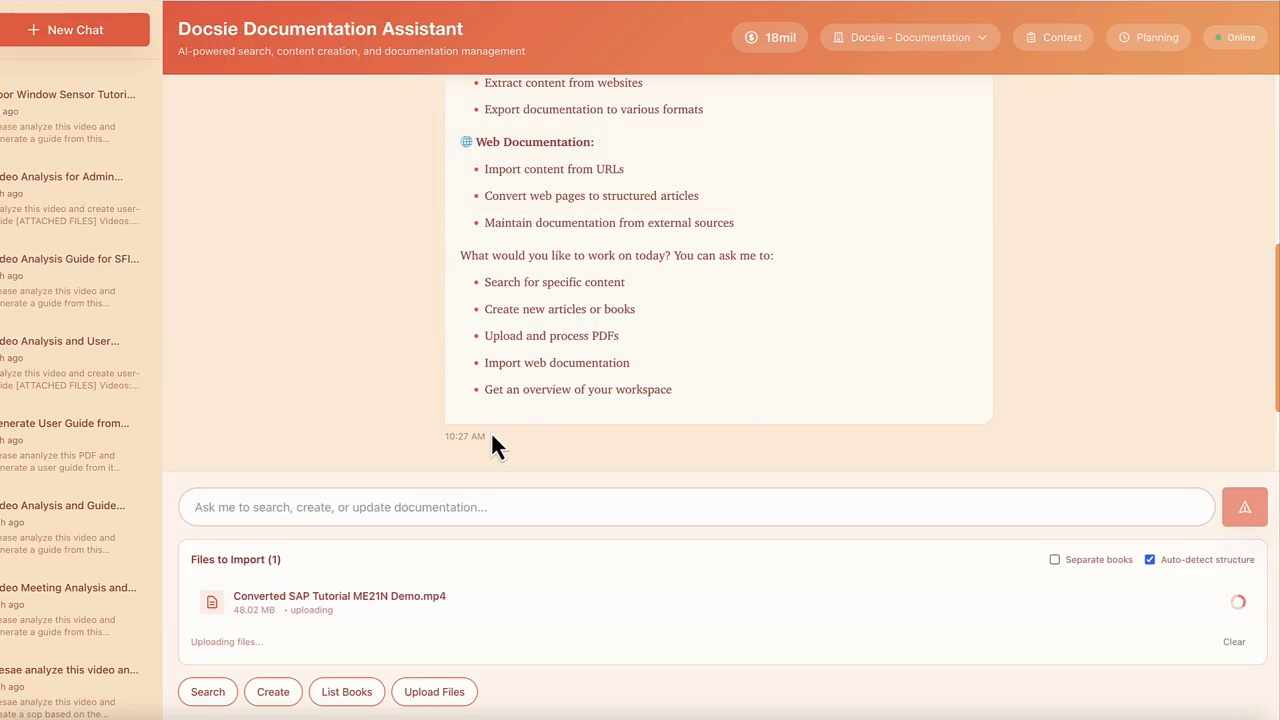
The upload process is straightforward. Select your file, confirm, and wait for it to complete. Depending on your video size and internet connection, this takes just a few moments. Once uploaded, your video appears in the file list, ready for the magic to happen.
Step Two: Request the Analysis
Here's where things get interesting. Once your video is uploaded, you simply click on it to select it, then type a natural language request into the chat interface. I typed: "please analyze this video and generate a guide from this."
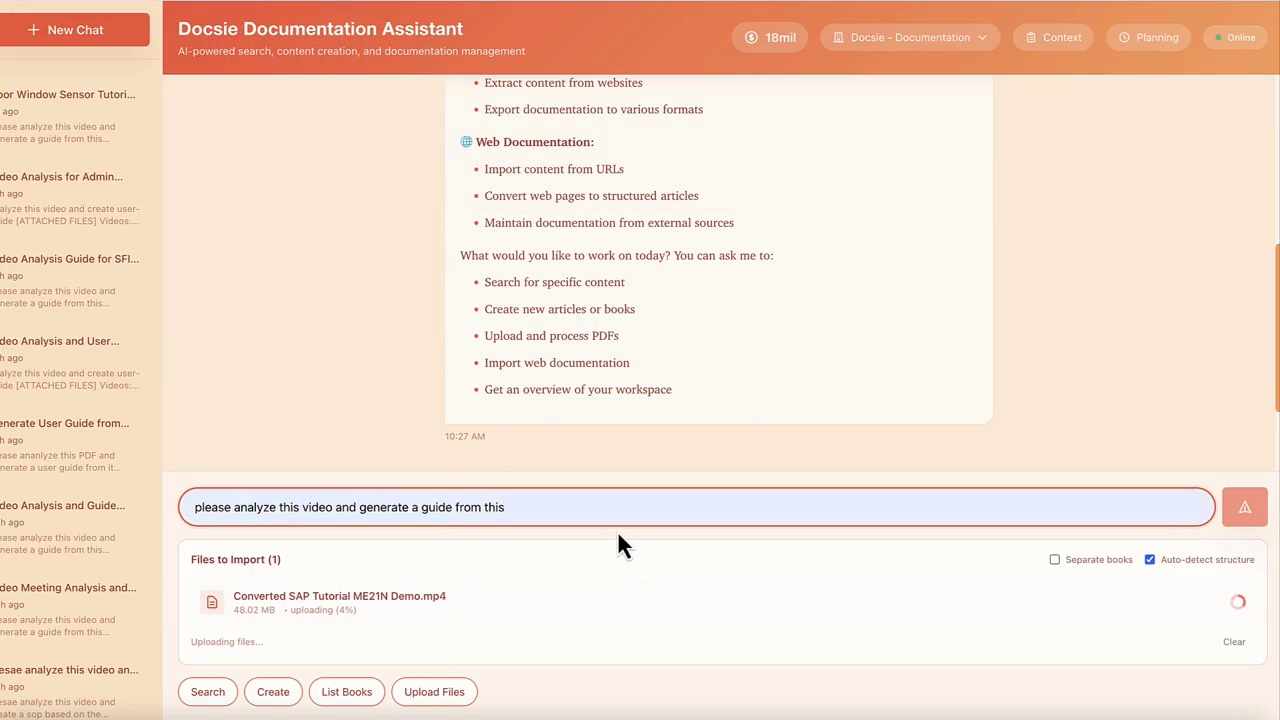
That's it. No complicated settings to configure, no technical jargon to decipher. Just tell the AI what you want in plain English, hit Enter, and let it do its thing.
Step Three: Watch the AI Work Its Magic
After submitting your request, the system displays the analysis parameters it's using. In my case, it recognized this as a "Guide" document type in English, targeting SAP tutorial content. The AI is smart enough to understand context from your video filename and content.
Then comes the waiting game—but it's a short one. The system estimates completion time (typically two to three minutes for most videos) and provides a progress bar so you can track what's happening in real-time.
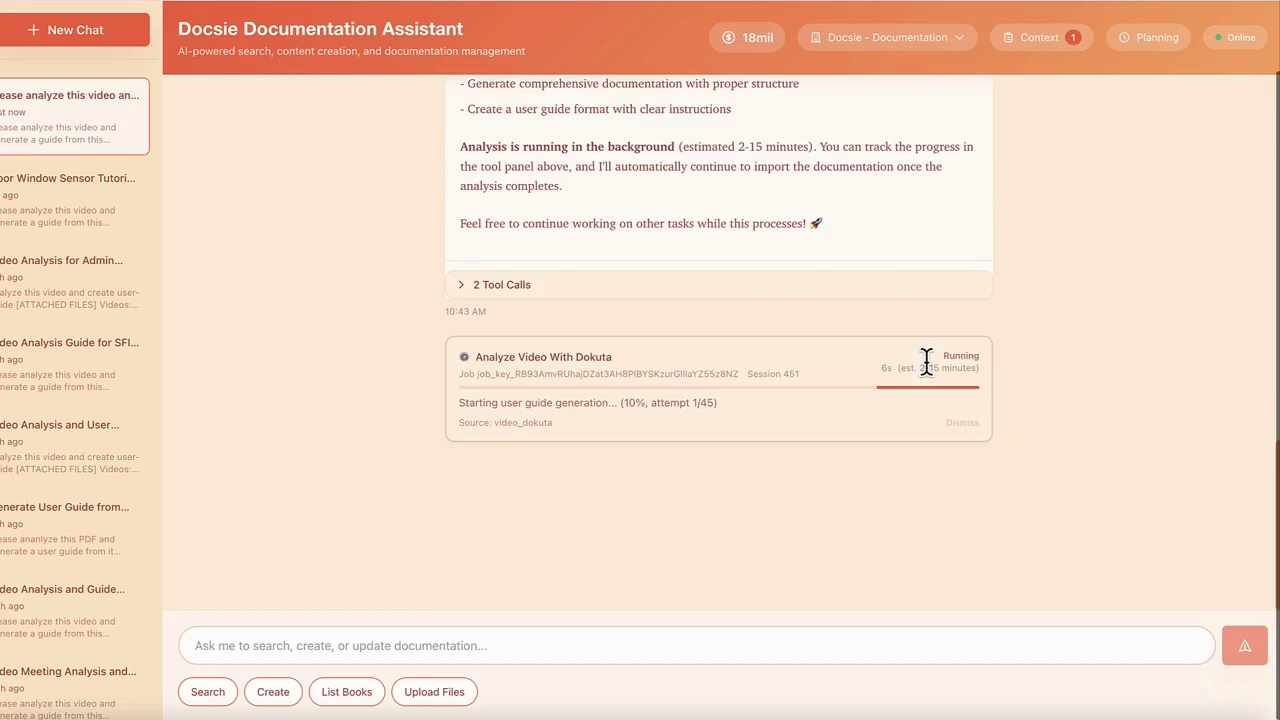
What I love about this stage is that you're not locked out of the system. While the AI is processing your video in the background, you can continue working on other tasks—creating new documentation, searching existing content, or updating other articles. The interface stays responsive and useful.
During analysis, the AI is doing some seriously impressive work behind the scenes:
- Extracting step-by-step processes from your video
- Identifying key actions and important details
- Capturing screenshots at relevant moments
- Structuring everything into logical sections with proper formatting
- Generating comprehensive documentation that actually makes sense
Step Four: Review Your Generated Documentation
Once the analysis completes, you get access to a Documentation Preview panel on the right side of the interface. This is where you can see what the AI has created before committing to anything.
I was genuinely impressed with the results. The generated guide included:
- A clear, well-written introduction explaining the SAP ME21N purchase order process
- Step-by-step instructions that matched the video content perfectly
- Relevant screenshots positioned exactly where they needed to be
- Proper formatting with headers, numbered lists, and emphasis where appropriate
- Important notes and reminders (like recording purchase order numbers for future reference)
The quality wasn't just "good for AI"—it was genuinely professional documentation that I'd be comfortable sharing with end users without major edits.
Step Five: Publish or Refine
After reviewing the generated content, the system presents you with a choice: proceed with publishing the user guide as-is, or request modifications first.
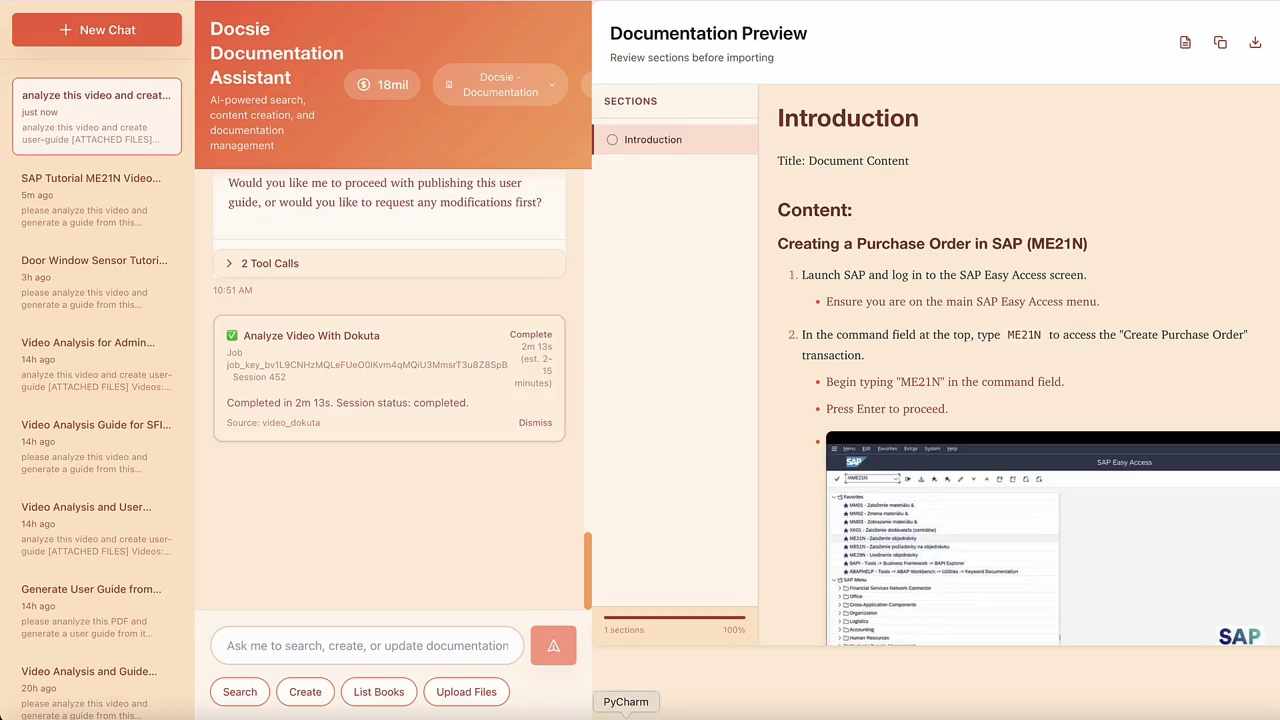
This flexibility is crucial. Sometimes the AI nails it on the first try, and you can publish immediately. Other times, you might want to tweak the tone, add more detail to certain sections, or adjust the structure slightly. The system accommodates both scenarios gracefully.
Before finalizing, I always recommend doing a thorough review to verify:
- Accuracy of process steps
- Clarity and completeness of instructions
- Proper screenshot placement
- Logical flow and structure
- Inclusion of all critical information
The Results: Time Saved, Quality Maintained
Let me put this in perspective. Creating comprehensive documentation from a video manually would typically take me several hours. I'd need to:
- Watch the video multiple times, taking detailed notes
- Capture screenshots at the right moments
- Write out each step clearly and concisely
- Format everything properly with headers and lists
- Review and edit for clarity and completeness
- Format images and integrate them into the document
With the Docsie Documentation Assistant, this entire process took less than ten minutes from start to finish. And the quality? Honestly comparable to what I would have created manually, if not better in some ways (the AI is remarkably consistent with formatting and structure).
Best Practices I've Learned
Through using this tool, I've picked up a few tips that make the process even smoother:
Start with clear video content. The AI can only work with what you give it. If your video is well-structured with clear actions and explanations, the generated documentation will be too.
Review thoroughly before publishing. The AI is impressive, but it's not perfect. Always check that technical details are accurate, especially with complex software like SAP.
Use descriptive filenames. The system uses context clues from your filename to understand what it's processing. "SAP_Purchase_Order_Tutorial.mp4" is more helpful than "Video_123.mp4."
Keep videos focused. Rather than one long video covering multiple topics, break it into focused segments. This produces cleaner, more organized documentation.
The Bottom Line
AI-powered documentation tools like Docsie represent a genuine breakthrough in how we create and maintain knowledge bases. They don't replace human expertise—they amplify it. You still need to know your subject matter and review the output, but the tedious, time-consuming work of transcribing, structuring, and formatting is handled automatically.
For organizations managing large documentation libraries, training materials, or product guides, tools like this are game-changers. They make it feasible to keep documentation current and comprehensive without dedicating entire teams to the effort.
Whether you're a technical writer looking to work more efficiently, a product manager needing to document features quickly, or a trainer wanting to provide multiple learning formats, video-to-documentation AI deserves a serious look.
The future of documentation isn't just written or just video—it's both, created seamlessly and maintained effortlessly. And that future is already here.
Ready to See It in Action?
Want to experience how Docsie can transform your video content into professional documentation? Book a demo to see the Documentation Assistant working with your own content.