
How to Transform Loom Videos into Documentation with Docsie
Loom has become the go-to tool for quick screen recordings—product walkthroughs, feature explanations, bug reports, onboarding guides. But those videos often end up in a library, watched once, then forgotten. The knowledge they contain stays locked inside the video format.
What if you could automatically convert those Loom recordings into structured, searchable documentation? That's exactly what Docsie's Documentation Assistant does.
This guide walks you through the entire process, from copying a Loom link to publishing polished documentation.
Watch the full walkthrough:
Why Convert Loom Videos to Documentation?
Loom videos are great for quick communication, but they have limitations:
- Not searchable — Users can't find the specific information they need
- Time-consuming to watch — A 5-minute video takes 5 minutes, every time
- Hard to update — Changing one detail means re-recording the whole thing
- Accessibility issues — Not everyone prefers video; some need text
Converting videos to documentation solves all of these problems while preserving the original content. You get the best of both worlds: the ease of recording a Loom, plus the usability of written docs.
What You'll Need
- A Loom account with videos you want to document
- A Docsie account (book a demo to get started)
- A web browser
Step-by-Step: Loom to Documentation
Step 1: Find Your Loom Video
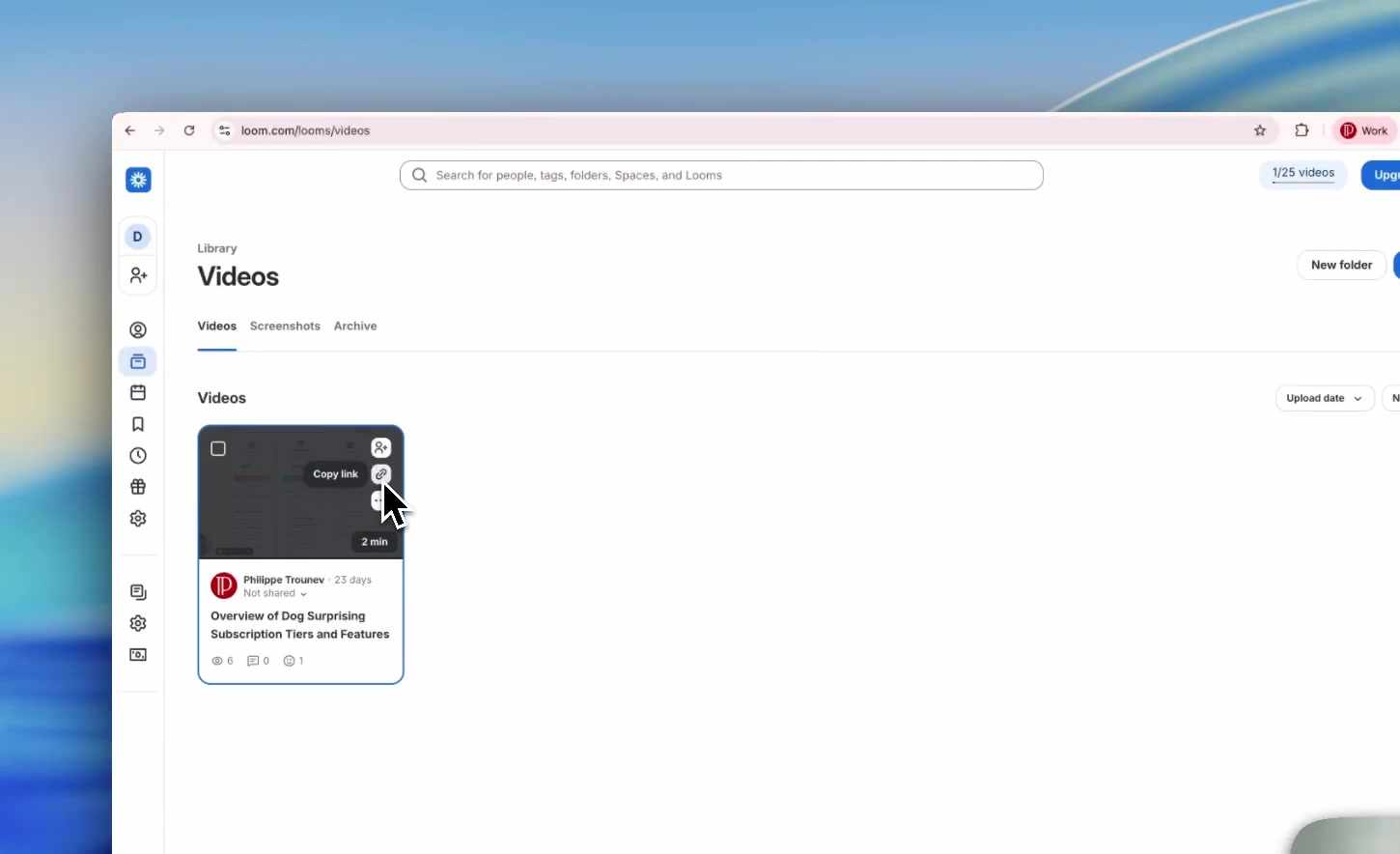
Open your Loom video library at loom.com/looms/videos and locate the video you want to convert.
For this example, we'll use a 2-minute product overview video explaining subscription tiers and features.

Step 2: Copy the Video Link
Hover over the video card and click the "Copy link" button. The Loom URL will be copied to your clipboard.
Step 3: Open Docsie Documentation Assistant
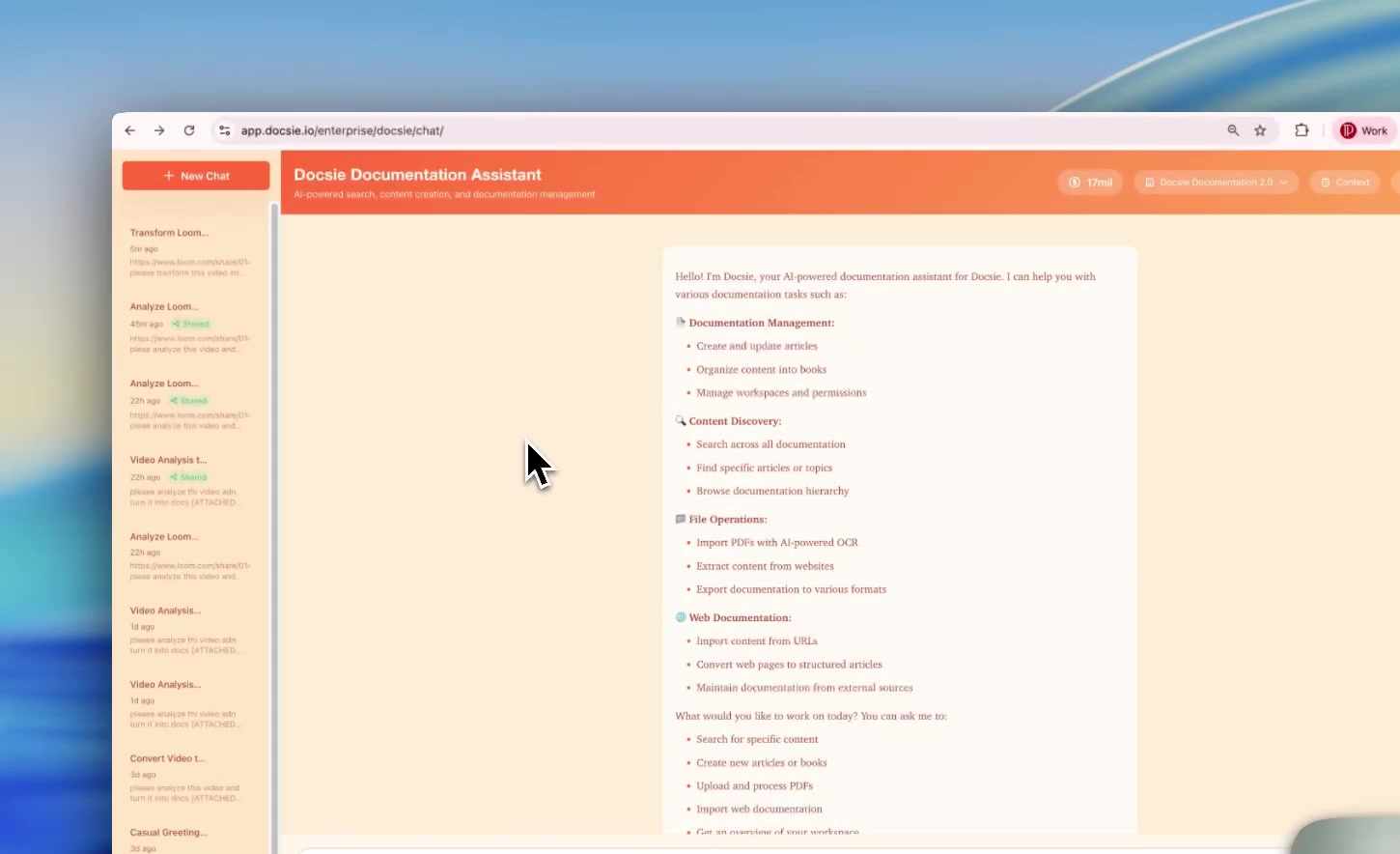
Log into your Docsie workspace and navigate to the Documentation Assistant. The chat interface provides options for documentation management, content discovery, file operations, and web documentation.
Step 4: Submit Your Loom Link
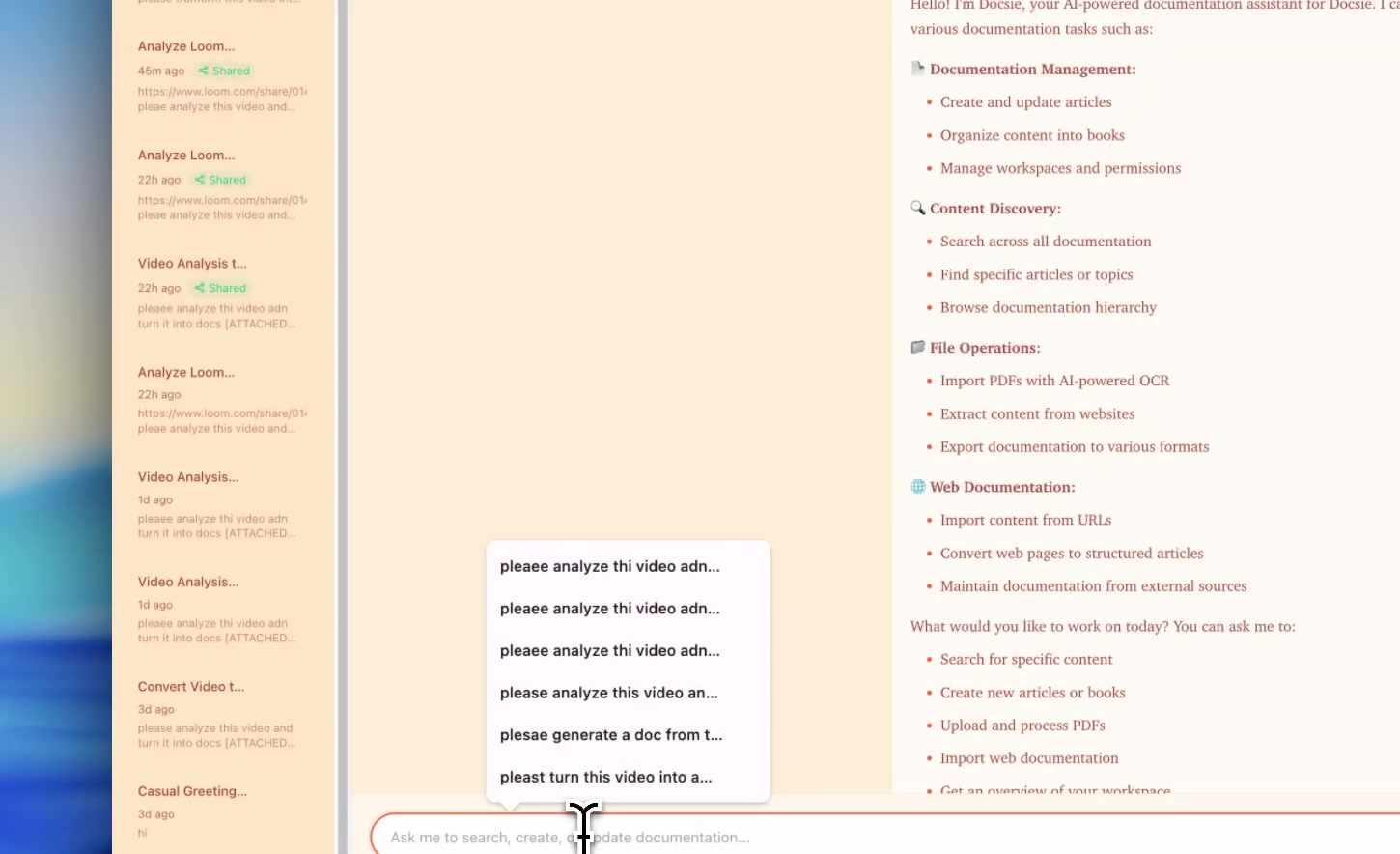
Paste your Loom video link into the chat input field and type a request like:
"Please turn this video into documentation"
Docsie will recognize the Loom URL and offer autocomplete suggestions for common documentation tasks.
Step 5: Wait for Processing
After you submit, Docsie will:
- Download and analyze the Loom video
- Transcribe the audio using speech recognition
- Identify key frames and extract relevant screenshots
- Generate structured documentation with proper headings and formatting
A progress indicator shows the conversion status. Processing typically takes 2-15 minutes depending on video length.
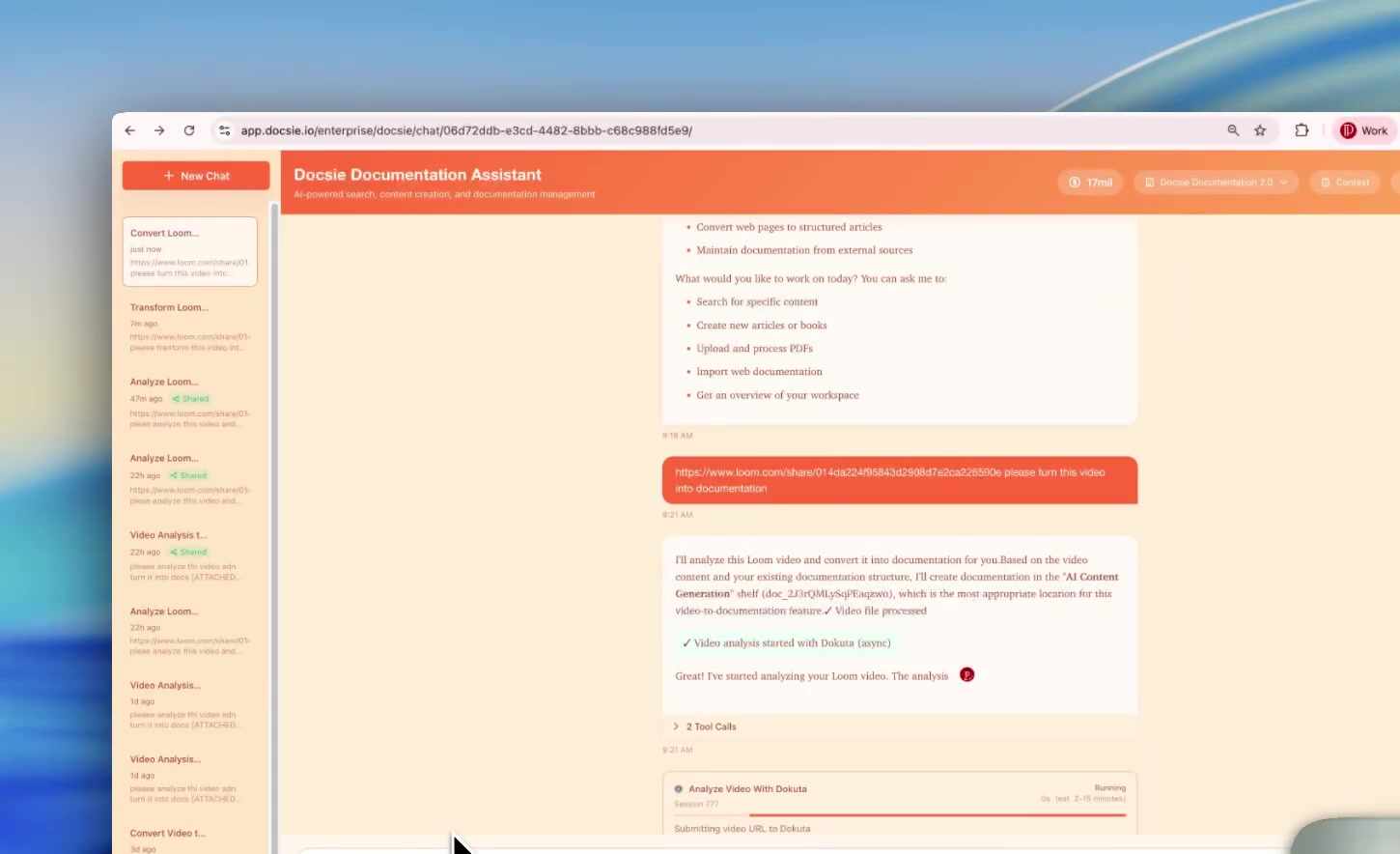
You can continue working on other tasks while the video processes in the background.
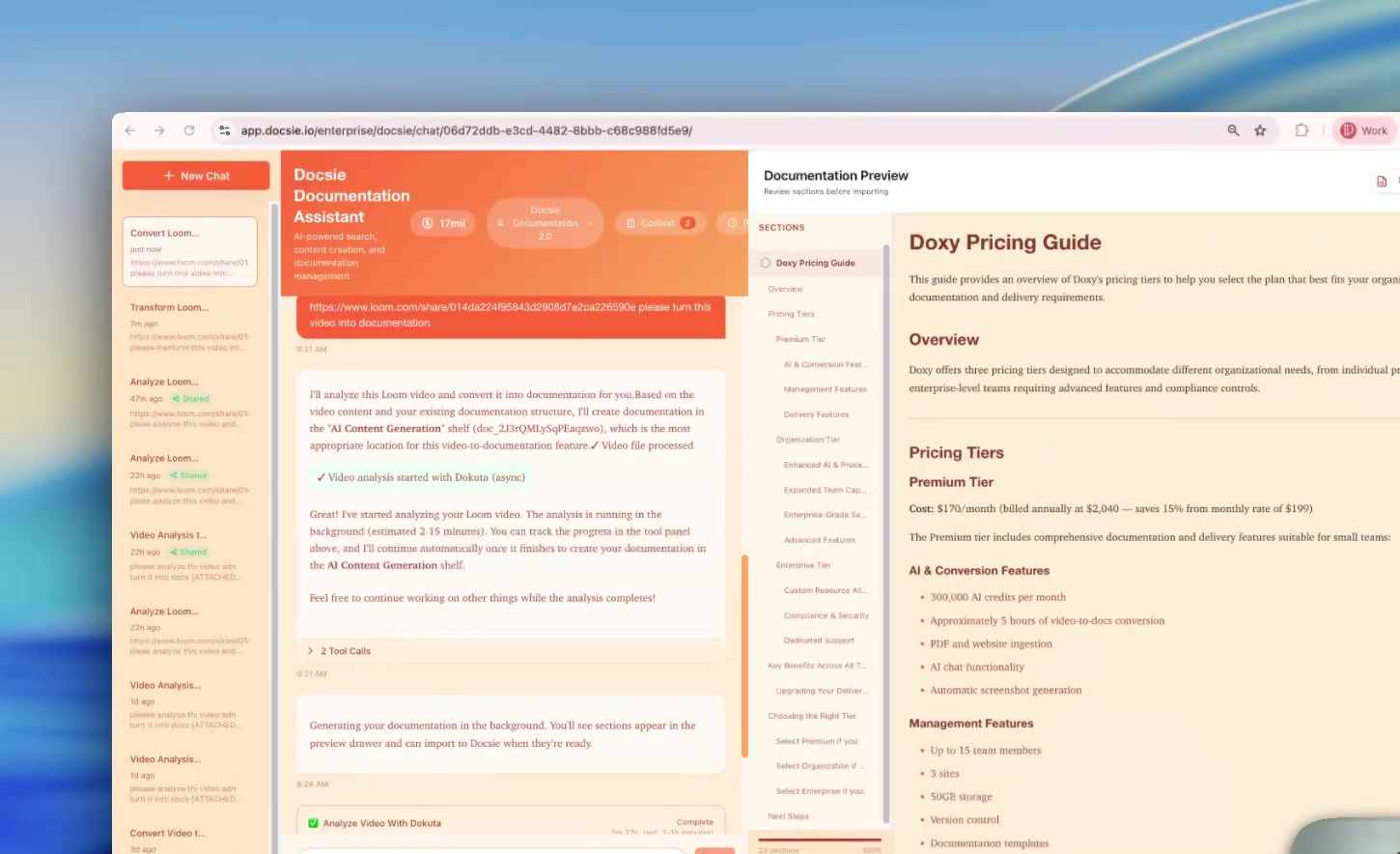
Step 6: Review the Generated Documentation
Once processing completes, the Documentation Preview panel displays your generated content. The documentation includes:
- Structured sections based on the video content
- Formatted text extracted from your narration
- Screenshots captured at key moments
- Logical organization of information
Refining Your Documentation
The AI-generated documentation is a solid first draft, but you'll often want to refine it. Docsie makes this easy through the chat interface.
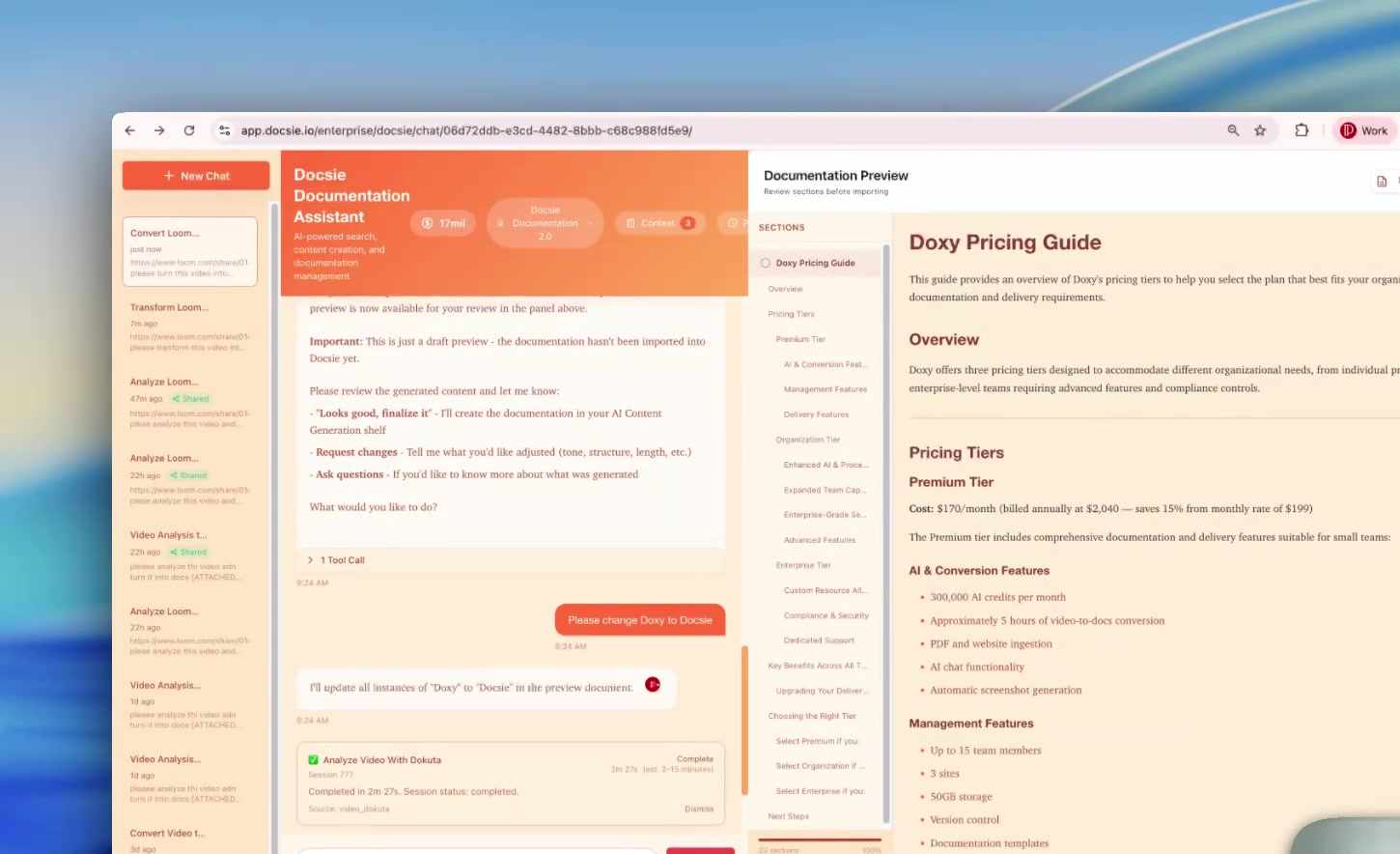
Making Corrections
Spot an error or inconsistency? Just tell Docsie what to fix:
"Please change all instances of 'Doxy' to 'Docsie'"
Docsie will find and update every occurrence throughout the document, then confirm when complete.
Adding Enhancements
Take your documentation further by requesting additions:
- "Write a more detailed introduction" — Adds context and background
- "Generate a flowchart showing the subscription tiers" — Creates visual diagrams
- "Add a FAQ section based on the video content" — Anticipates user questions
- "Expand the section on pricing" — Adds more detail to specific areas

The iterative refinement process means you can shape the documentation exactly how you want it, all through natural language requests.
Use Cases for Loom-to-Documentation
Product Teams
Convert feature walkthrough Looms into user guides that customers can search and reference.
Customer Success
Transform onboarding videos into step-by-step documentation for self-service support.
Engineering Teams
Turn architecture explanations and code walkthroughs into technical documentation.
Sales Teams
Convert demo recordings into leave-behind materials and product overviews.
HR and Training
Transform training videos into searchable knowledge base articles for employees.
Benefits of Converting Loom Videos
| Manual Documentation | Docsie Conversion |
|---|---|
| Watch video, pause, take notes | Paste link, wait 2-15 minutes |
| Manually capture screenshots | Auto-extracted key frames |
| Write and format from scratch | Structured draft generated |
| Hours of work per video | Minutes per video |
| Inconsistent formatting | Consistent structure |
Time savings example: A 10-minute Loom video might take 2-3 hours to document manually. With Docsie, you get a solid draft in under 15 minutes, then spend 10-15 minutes refining. That's 80%+ time savings.
Tips for Better Results
When Recording Your Loom
- Speak clearly — The AI transcribes your narration, so clear speech improves accuracy
- Describe what you're showing — "Now I'm clicking the Settings button" helps the AI understand context
- Pause at key moments — Brief pauses help identify section breaks
- Keep videos focused — One topic per video produces cleaner documentation
When Converting
- Use descriptive requests — "Turn this into a user guide" gives better results than just "document this"
- Review the structure first — Check that sections make sense before diving into details
- Iterate in stages — Fix major issues first, then refine details
Getting Started
Ready to turn your Loom library into searchable, shareable documentation?
- Book a demo to see Docsie in action with your own Loom videos
- Identify your highest-value videos — Start with recordings that get watched repeatedly
- Convert and refine — Let AI do the heavy lifting, then polish the output
- Publish and share — Make your documentation available to the people who need it