
How to Create SAP Documentation from Training Videos Automatically
SAP implementations generate hundreds of training videos. Converting them into usable documentation typically requires weeks of manual effort. This guide shows how to use Docsie's Documentation Assistant to automatically transform SAP tutorial videos into structured guides in minutes.
The SAP Documentation Challenge
Every SAP implementation project faces the same problem:
- Consultants record 200+ training videos per client engagement
- Videos sit unwatched in SharePoint or Teams libraries
- End users can't search video content when they need help
- Manual documentation takes 2-3 hours per video
For a typical SAP S/4HANA rollout, this means 400-600 hours of documentation work—or more realistically, documentation that never gets created.
Docsie's Documentation Assistant solves this by using AI to watch your SAP training videos and automatically generate step-by-step guides with screenshots.
Watch how it works:
What You'll Need
- A Docsie account (book a demo to get started)
- Your SAP training video files (MP4, MOV, or screen recordings)
- 5-10 minutes per video for review and publishing
Step-by-Step: Creating SAP Documentation with Docsie
Step 1: Access the Documentation Assistant
Log into your Docsie workspace and open the Documentation Assistant. The dashboard provides access to:
- Import from files – Upload videos, PDFs, and documents
- Export from websites – Capture existing web content
- Convert to articles – Transform content into structured documentation
- Workspace overview – Manage all your documentation projects
The search bar at the bottom helps you quickly find existing books, articles, or documentation across your workspace.
Step 2: Upload Your SAP Training Video
Upload your SAP tutorial video using either method:
- Drag and drop the video file directly into the interface
- Click Upload Files and select your video
For this example, we're using "Example SAP Tutorial MM21N Demo.mp4" – a purchase order creation tutorial.
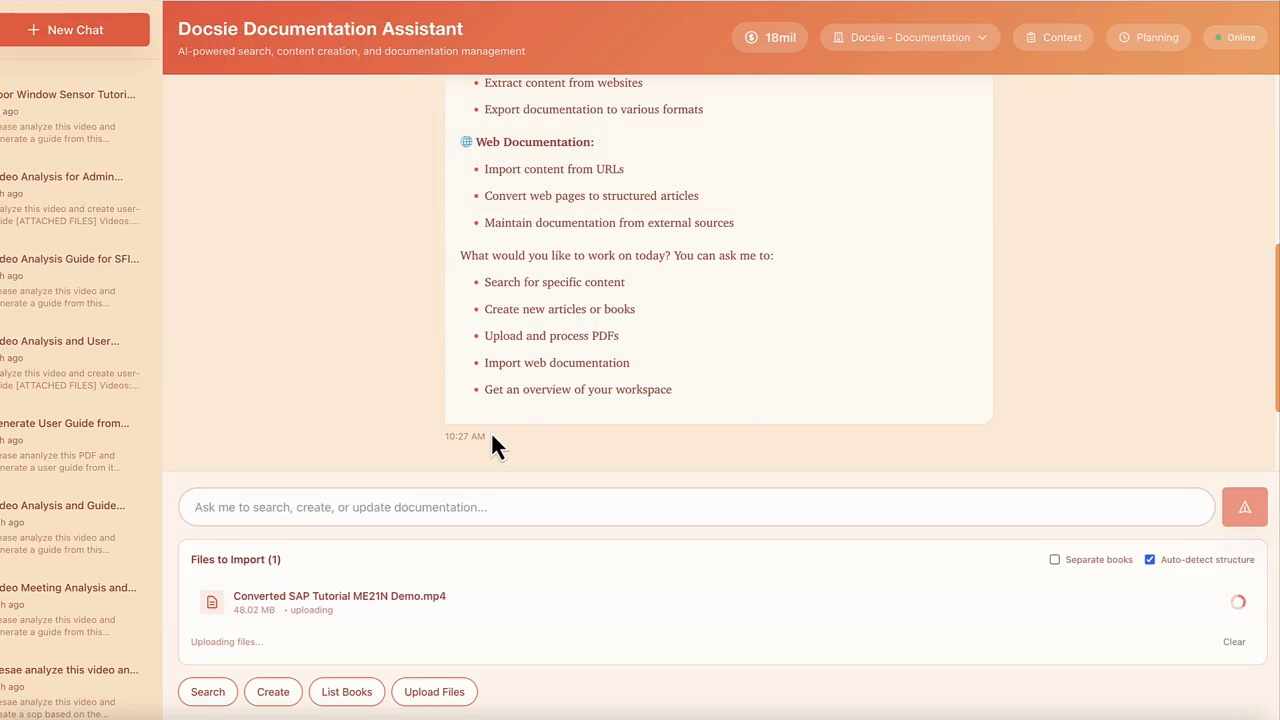
Docsie accepts most video formats including MP4, MOV, AVI, and direct Zoom/Teams recordings.
Step 3: Preview the Video Content (Optional)
Before processing, you can preview the video to verify it's the correct file. In this SAP ME21N demo, you'll see:
SAP Create Purchase Order Screen: - Navigation tabs: Address, Communication, Partners, Additional Data, Org. Data, Status, Payment Processing - Data entry fields: PO Quantity, Net Price, Material Group, Site Location - Standard SAP transaction interface
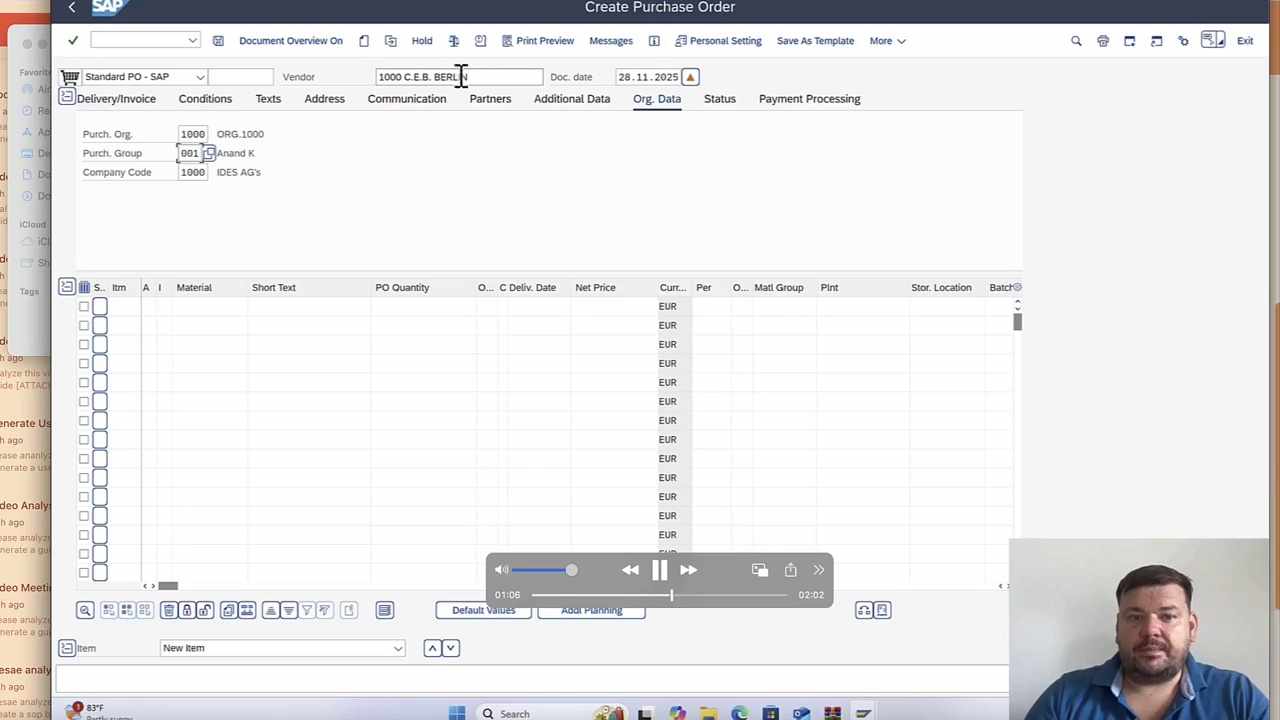
This preview step is optional but helpful for confirming you're documenting the right process.
Step 4: Start the AI Analysis
In the chat interface, tell Docsie what you want:
Please analyze this video and generate a guide from the ATTACHED FILES
Docsie will automatically detect: - Document type: Guide - Language: English - Target label: SAP MM21N tutorial video
Confirm these parameters or adjust as needed before the analysis begins.
Step 5: Monitor Processing Progress
Docsie's AI now watches your video frame-by-frame, identifying:
- Key actions and mouse clicks
- Screen transitions and navigation steps
- Field entries and data inputs
- Menu selections and button clicks
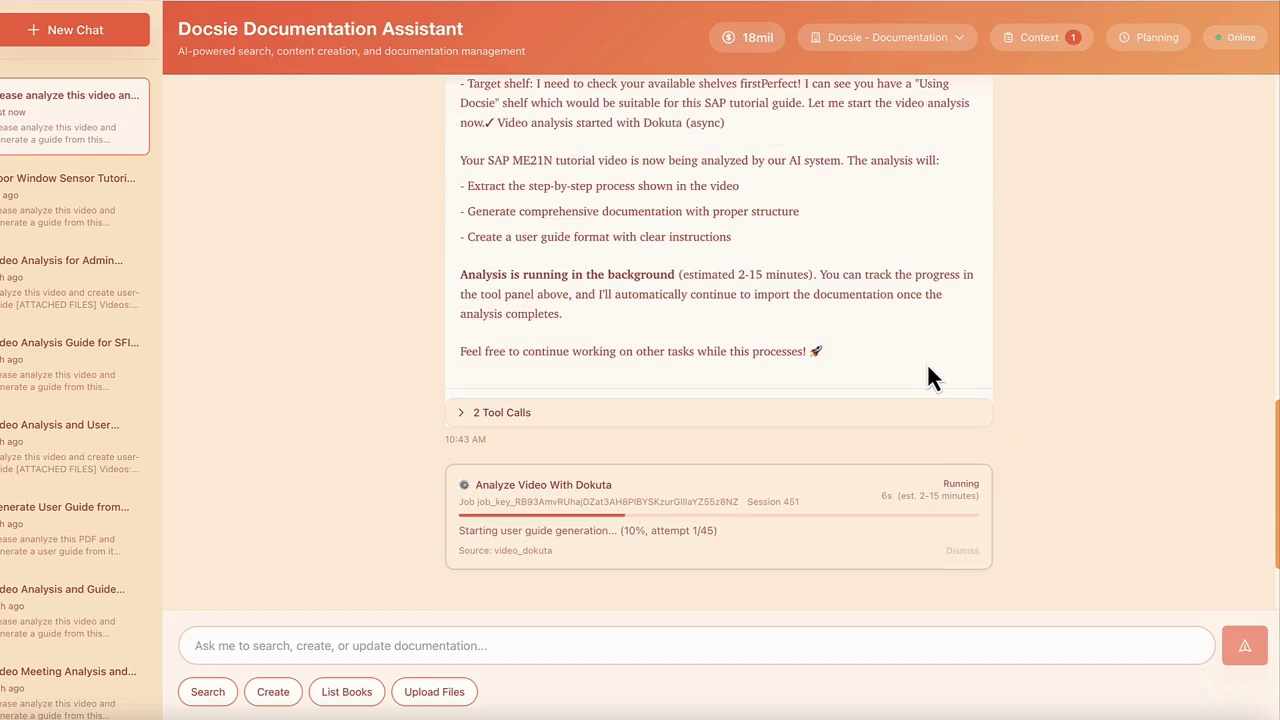
A 10-minute SAP tutorial typically processes in 2-3 minutes. You can continue working on other tasks while the analysis runs in the background.
Step 6: Review the Generated Documentation
Once processing completes, a Documentation Preview panel appears with your structured guide. Review it for:
Content accuracy: - Are all SAP transaction steps captured? - Do the instructions match what happens in the video? - Are field names and values correct?
Completeness: - Introduction explaining the SAP process - Step-by-step instructions for ME21N purchase order creation - Screenshots of key screens and fields - Final steps for saving and confirming
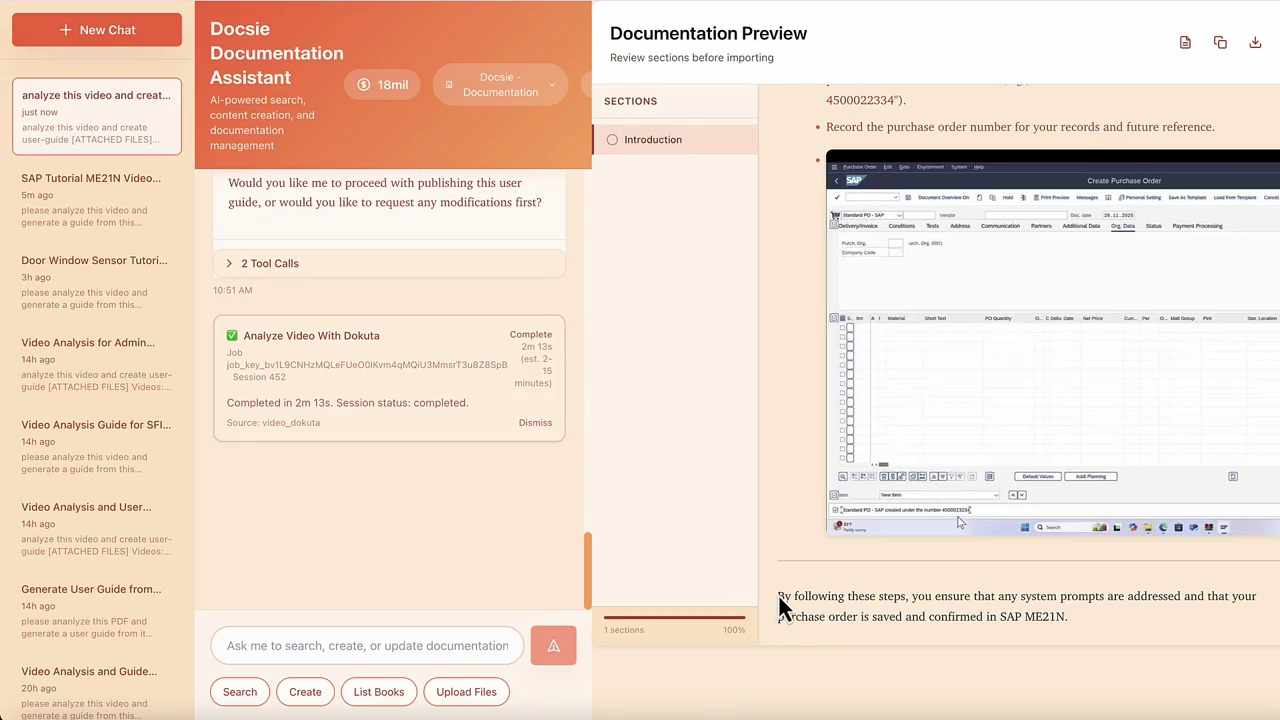
The AI captures SAP-specific terminology (transaction codes, field names, navigation paths) with high accuracy since it reads on-screen text via OCR.
Step 7: Publish or Edit
Choose your next step:
- Publish immediately – Make the guide available to your team or clients
- Request modifications – Ask Docsie to adjust specific sections
- Edit manually – Make direct changes to the generated content
For client deliverables, most consultants do a quick 5-minute review before publishing.
Step 8: Save Reference Information
Note any important details from the generated guide: - Purchase order numbers created during the demo - Transaction codes covered (ME21N, etc.) - Module-specific references (MM, SD, FI, etc.)
These help with organizing and searching your documentation library later.
SAP Modules Supported
Docsie's video-to-documentation works with any SAP training content:
| Module | Common Transactions | Documentation Use Cases |
|---|---|---|
| MM (Materials) | ME21N, ME22N, MIGO | Purchase orders, goods receipt |
| SD (Sales) | VA01, VL01N, VF01 | Sales orders, deliveries, billing |
| FI (Finance) | FB01, F-28, F110 | Journal entries, payments |
| HR/HCM | PA30, PA40, PT60 | Employee records, time management |
| PP (Production) | CO01, CO11N | Production orders, confirmations |
| WM (Warehouse) | LT01, LT10 | Transfer orders, stock movements |
The AI understands SAP screen layouts, field structures, and navigation patterns across all modules.
Time Savings: Manual vs. Docsie
| Scenario | Manual Documentation | With Docsie |
|---|---|---|
| Single SAP tutorial (10 min) | 2-3 hours | 15 minutes |
| Module training set (20 videos) | 40-60 hours | 5-6 hours |
| Full implementation (200 videos) | 400-600 hours | 2-3 days |
ROI example: A mid-size SAP implementation with 200 training videos saves 350+ hours of documentation work—equivalent to $30,000+ in consulting time.
Best Practices for SAP Video Documentation
Before recording: - Use consistent screen resolution (1920x1080 recommended) - Zoom to 100% in SAP GUI for readable text - Close unnecessary windows and notifications - Use a quiet environment for clear audio
During upload: - Name files descriptively (e.g., "SAP_ME21N_Create_Purchase_Order.mp4") - Group related videos by module or process - Include transaction codes in filenames for easy searching
After generation: - Review SAP-specific terminology for accuracy - Add client-specific context where needed - Include links to related documentation - Tag with appropriate categories (module, process type, audience)
Advanced Features for SAP Consultants
Multi-language support: Translate your SAP guides to 80+ languages instantly. Essential for global rollouts where end users need documentation in their local language.
Version control: Create client-specific variants of standard SAP guides. Reuse 80-90% of content across similar implementations while customizing for each client's configuration.
Client portals: Publish documentation to branded, private portals for each client. Control access, track usage, and maintain separation between engagements.
Analytics: See which guides get the most views, identify gaps in your documentation coverage, and measure training effectiveness.
Getting Started
Ready to stop manually documenting SAP training videos?
- Book a demo to see Docsie in action with your content
- Upload your first SAP tutorial video
- Review the AI-generated guide (5 minutes)
- Publish and share with your team or clients
Book a Demo → | SAP Video-to-Docs Solution → | Watch Video →
Frequently Asked Questions
Does Docsie understand SAP-specific terminology? Yes. The AI uses OCR to read on-screen text, so it captures transaction codes, field names, and menu paths exactly as they appear in your SAP system.
Can I customize the generated documentation? Absolutely. You can edit the generated content directly, request AI modifications, or export to other formats for further editing.
What video formats are supported? MP4, MOV, AVI, WebM, and direct recordings from Zoom, Teams, Loom, and most screen recording tools.
How accurate is the AI for complex SAP processes? Accuracy is typically 90-95% for standard SAP transactions. Complex custom configurations may require more review, but you're still saving 80%+ of documentation time.
Can I use this for SAP S/4HANA and ECC? Yes. The AI analyzes what's on screen, so it works with any SAP version—ECC, S/4HANA, Business One, or cloud editions.